

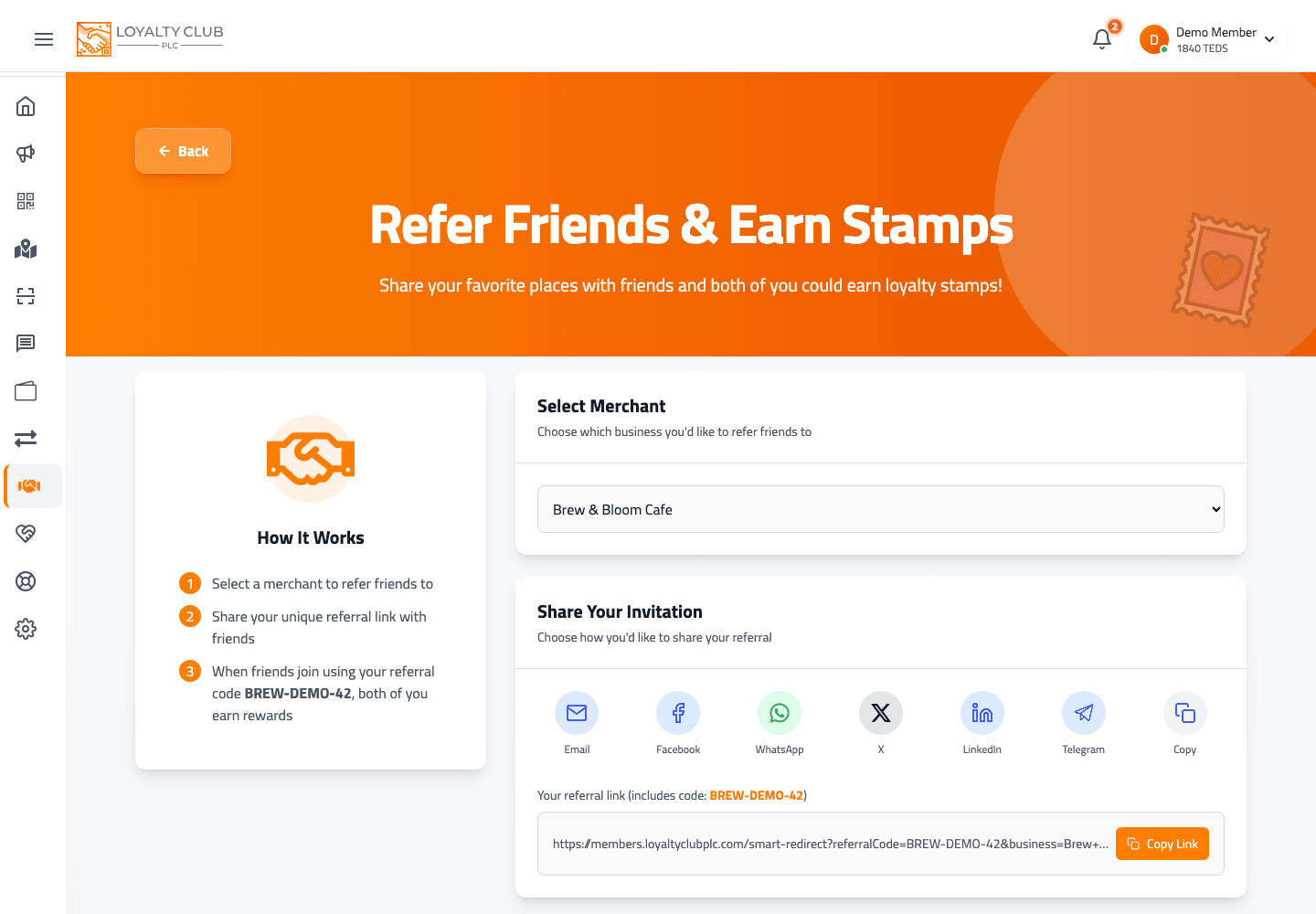
The Refer a Friend page generates a referral link tied to a specific partner of yours.
Generating
- 01Open Refer a Friend
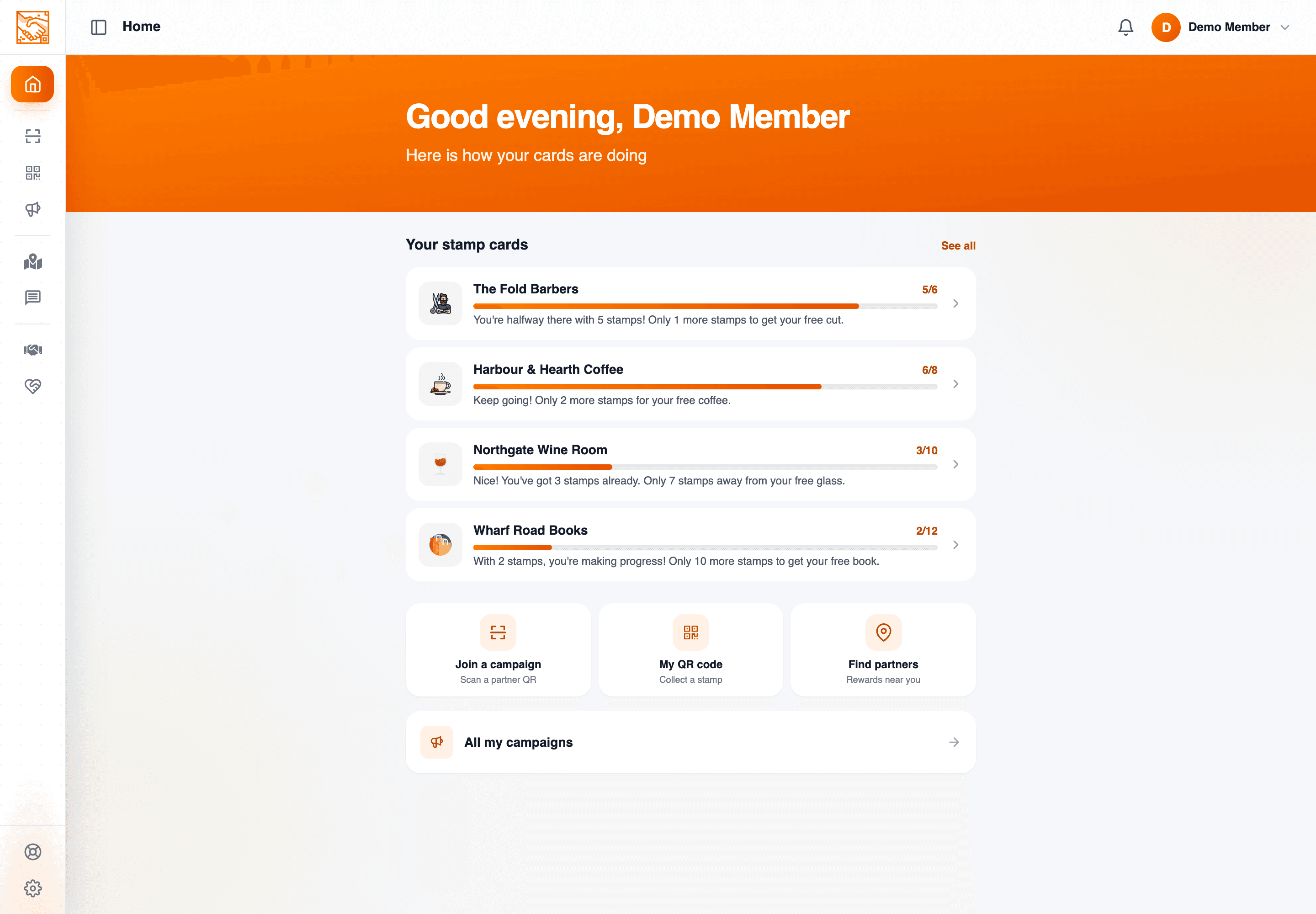
From the home screen.
- 02Pick a partner
If you’re enrolled in multiple partners’ campaigns, choose from the business-name dropdown. If you’re only enrolled in one, it’s auto-selected.
- 03Copy or share
Use Copy Link, or one of the share buttons (Email, Facebook, LinkedIn, Twitter / X, WhatsApp).
The link is partner-specific — each partner has their own referral code, and shares pre-fill that partner’s campaign at signup.
Share-message templates
Each channel uses a template configured by the partner via their Refer A Friend Messages settings. So the wording your friend sees comes from the partner you selected.
What to know
- Exact bonus amounts on conversion — bonuses depend on the partner’s campaign configuration (
referrerStampsRewardedandreferredFriendStampsRewardedset in Step 4 of the campaign wizard). They could be 0, 1 or any other number depending on the campaign. - Tracking referral status — the current member-side ReferAFriend page focuses on share actions; whether a per-friend status list is shown wasn’t verified end-to-end.
In one sentence
Refer a Friend → pick the partner → share via Email / Facebook / LinkedIn / X / WhatsApp using the partner’s template. Bonuses depend on what the partner configured.