

Two location-related settings drive how members find you: your map location and your postcode entries. They live in two separate sections of Settings.
Settings → Location Settings
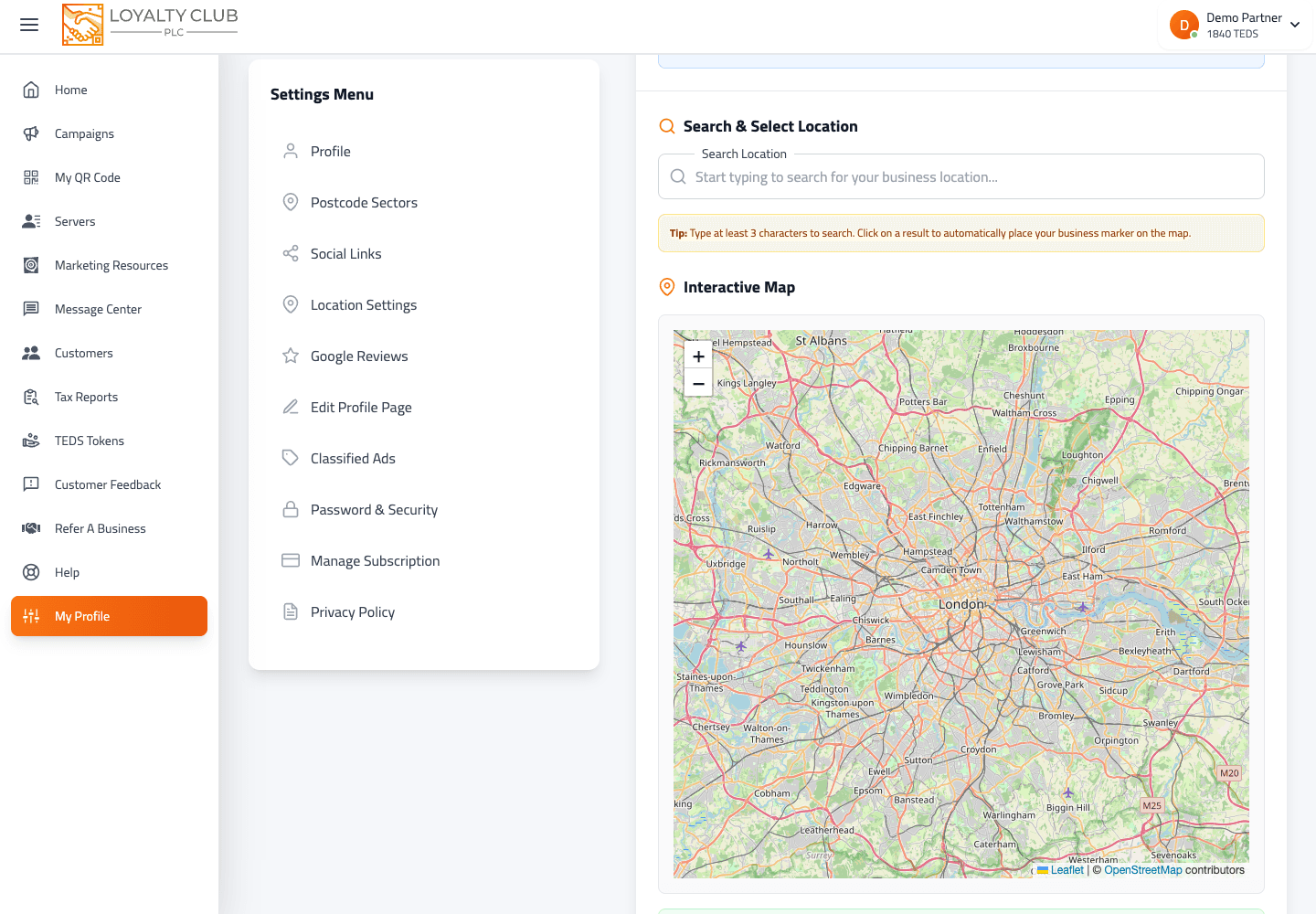
Places your business pin on the map.
- 01Open Settings → Location Settings
A search input appears above the map.
- 02Type to search for your business
At least 3 characters. The search calls a geocoding service and returns matches.
- 03Click the right result
The map zooms to the location and places a marker.
- 04Save
The location persists; your pin appears on the partners map.
The map is rendered with Leaflet (open-source mapping library) — UK addresses resolve well from the search.
Settings → Postcode Sectors
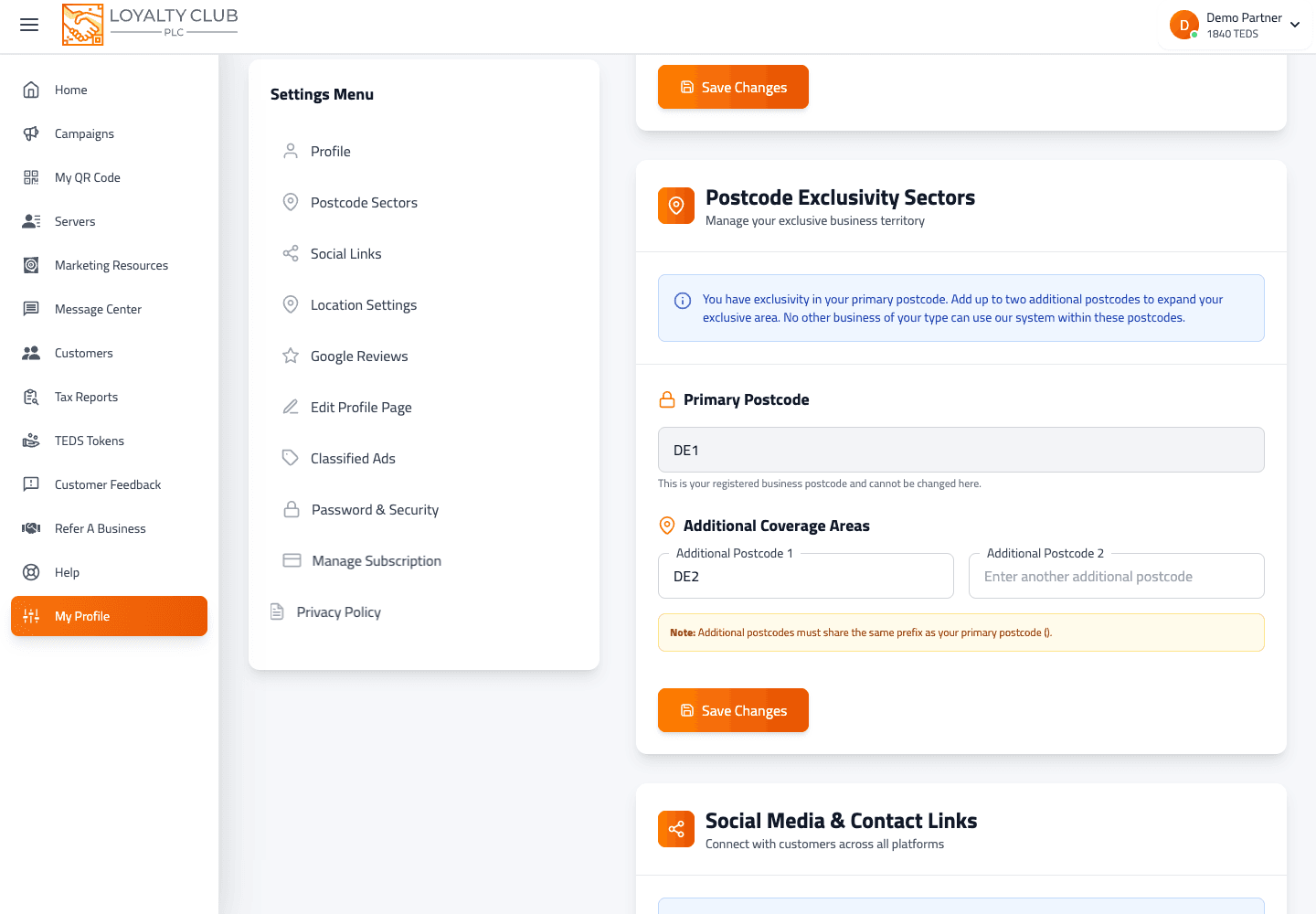
A separate section that holds three postcode entries:
- Primary postcode
- Additional postcode 1
- Additional postcode 2
Each is validated against the UK postcode format. They’re used to surface your business in postcode-based discovery — when a member searches by a UK postcode, partners with matching postcode entries are surfaced first.
Use your trading address postcode as the primary. Use the additional slots for nearby areas your customers come from — usually the postcodes immediately adjacent to your shop.
UK only
Postcode entries are UK-format only.
In one sentence
Settings → Location Settings = type-to-search map pin. Settings → Postcode Sectors = three UK postcode entries (primary + two additional).