

After signup, your next stop is Settings → Profile. Members find you on the map and in search by what’s in here; HMRC and your accountant care about the tax-related fields.
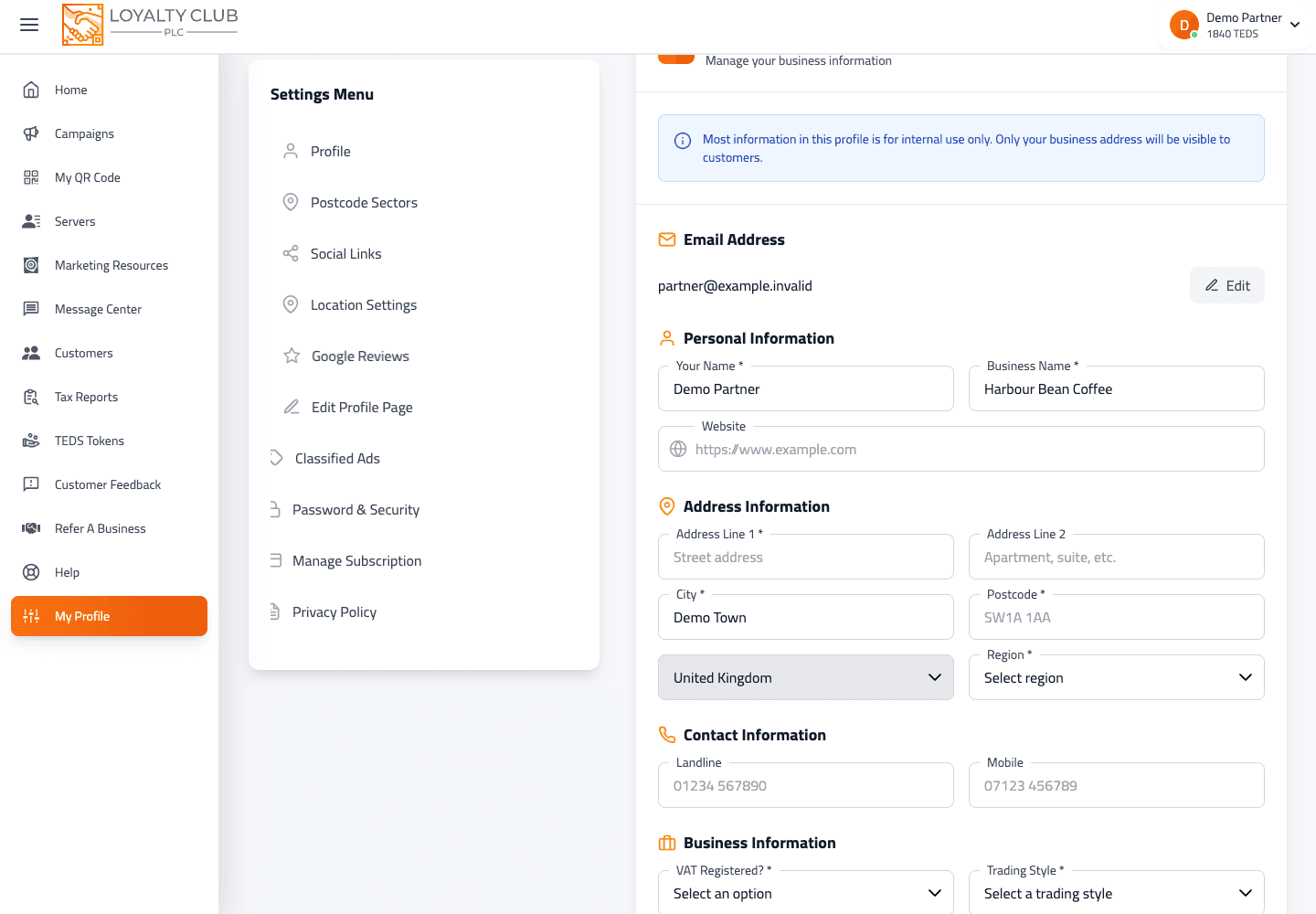
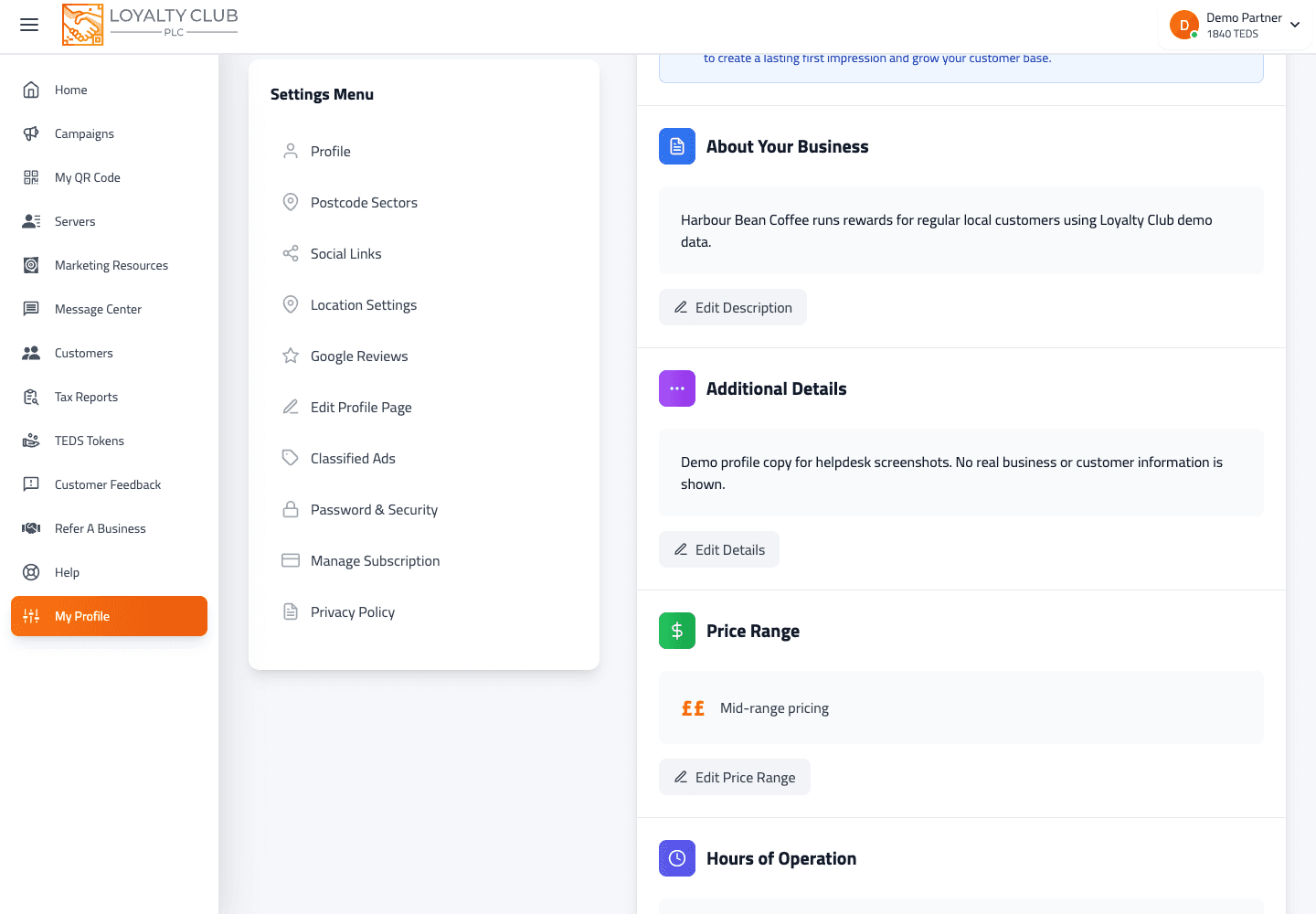
Required fields
These all need to be filled before the profile saves:
- Your name (the owner / contact name)
- Business name
- Address line 1
- City
- Postcode
- Country
- Region
- Business type
- Business category
- Trading style (sole trader, limited, partnership, charity, etc.)
- VAT registration
- Multiple locations flag
Optional fields
- Address line 2
- Website
- Landline
- Mobile
- Company logo (uploaded image)
- Owner / client avatar (uploaded image)
Editable but special
- Email — your sign-in email lives in this form too. Editing it here changes your sign-in email when you save.
Filling it in
- 01Open Settings → Profile
From the portal sidebar.
- 02Click Edit
The form switches into edit mode.
- 03Fill the required fields
Anything left blank or invalid is flagged on save with "This field is required".
- 04Upload images (optional)
Logo + owner avatar via the upload controls. Square images render best.
- 05Save
The profile updates immediately.
"Riverside Café" reads better than "RIVERSIDE CAFE LIMITED" in member search and on your map pin. Trading style + VAT detail goes in the dedicated fields, not the business name.
Your name and logo in club emails
Your business name is also the name your club emails arrive from — "Riverside Café via Loyalty Club" — and the header at the top of every club email shows your logo and your business name. A clear, square logo and the name people know you by make those emails recognisable in a crowded inbox. See Designing a club email.
What to know
- Logo file size / format limits — uploads work for common image types; specific limits aren’t spelled out in the UI.
- How long member-app caches take to refresh after a profile change — implementation-dependent.
In one sentence
Settings → Profile → fill the required fields (name, address, business type/category, trading style, VAT, multi-location) → upload a logo if you want — it also heads your club emails → save.