

The scanner page shows an order value input alongside each campaign’s Apply Stamp button. What it does depends on the campaign type.
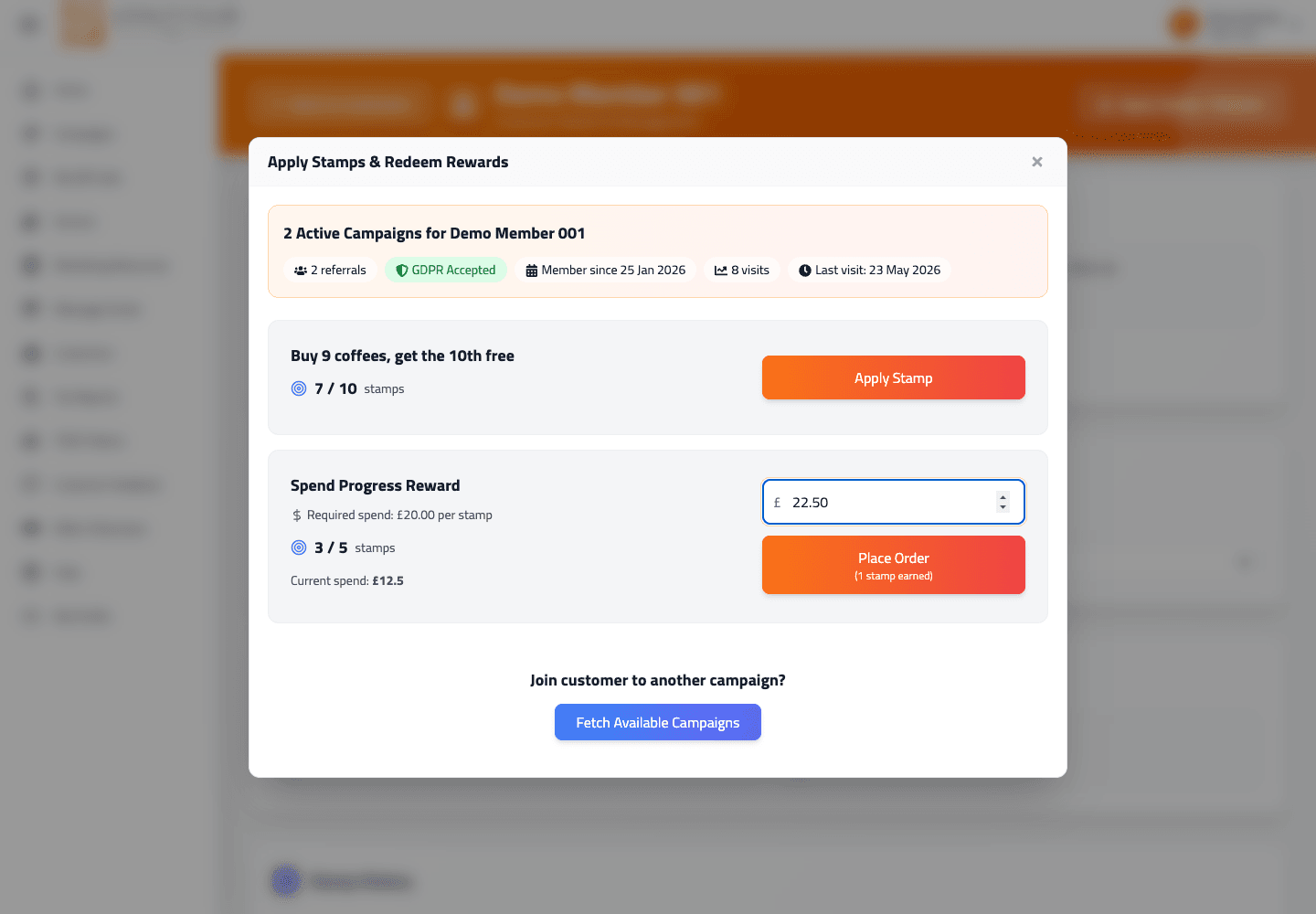
For "Buy X, Get Y Free" campaigns
The order value is optional context — recorded against the stamp transaction but doesn’t change how many stamps award. Each tap on Apply Stamp = 1 stamp.
Worth filling in when convenient — it improves your tax-report accuracy and gives you per-customer spend context.
For "Spend X Amount To Earn a Stamp" campaigns
The order value drives the stamp count. The button label changes from "Apply Stamp" to "Place Order", and the per-stamp count appears live below the button as you type.
Example: campaign is set to award 1 stamp per £5 spent. You enter £15 → button shows "(3 stamps earned)" → tap places the order and awards 3 stamps in one action.
Compulsory order values
If the campaign was set as compulsory in the Financial step of the wizard, the order value field is required for the spend-based variant — the Apply Stamp button stays disabled until you enter a value.
What you can’t do
- Award a fractional stamp — partial spend doesn’t round up. £7 with a £5/stamp rule = 1 stamp (not 1.4). The remainder may carry over to the next visit only if the campaign has Allow Amount Accumulation enabled (set in the Mechanics step of the wizard).
- Edit the order value after applying — once the stamp posts, the order value is fixed. Use stamp revocation if you scanned wrong, then re-scan.
In one sentence
Order value = required driver for spend-based campaigns; optional context for visit-based. "Place Order" replaces "Apply Stamp" on spend-based campaigns and shows the live stamp count.