
Both your sign-in email and your password are editable from Settings. They live in different sections.
Changing your password
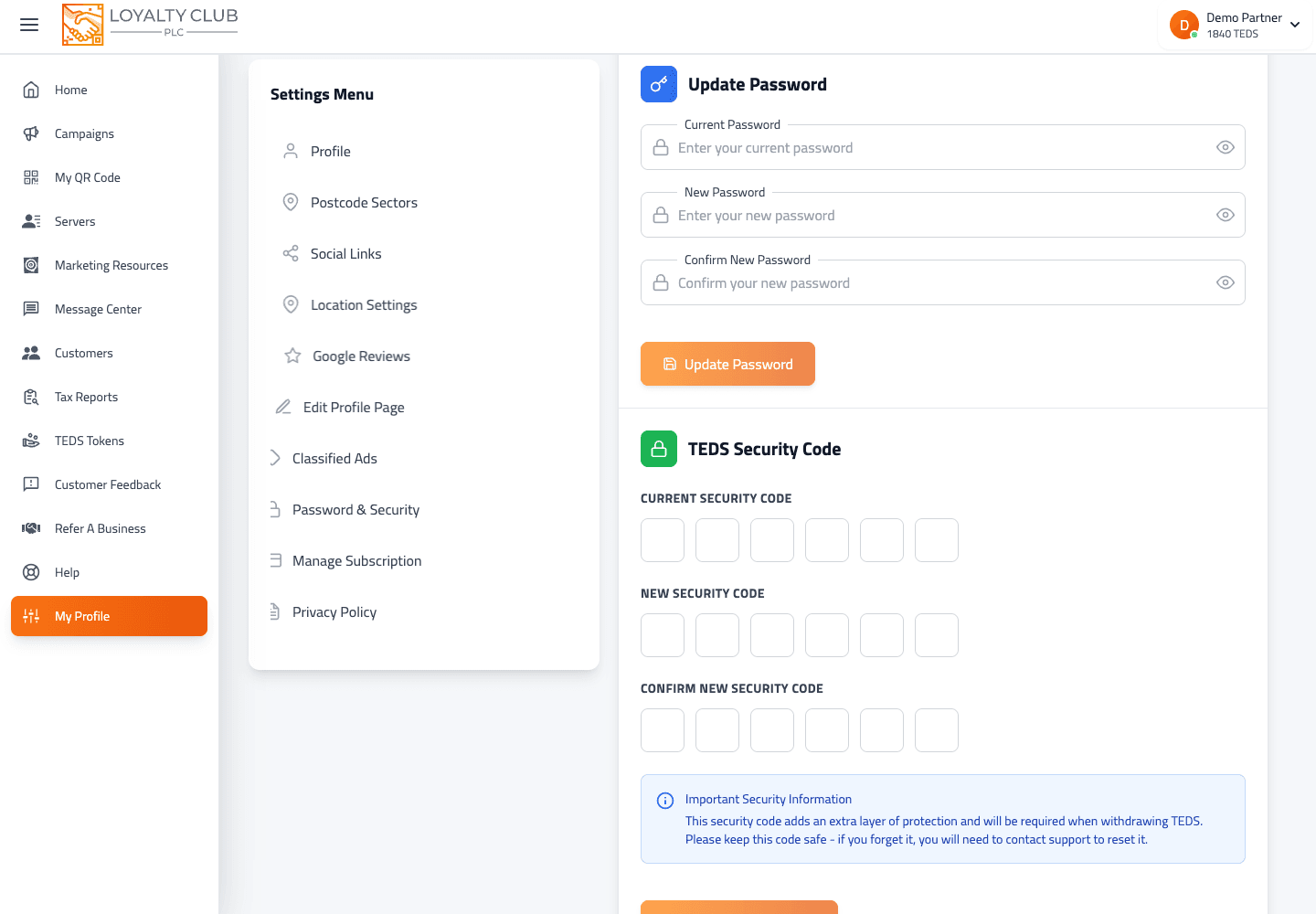
- 01Open Settings → Password & Security
From the portal sidebar.
- 02Fill the three fields
Current password, new password, confirm new password.
- 03Save
The new password takes effect immediately. Other devices may sign you out and prompt for the new password.
If you’ve forgotten your current password, use the Password reset link on the login screen instead — sends a reset link to your registered email.
Changing your email
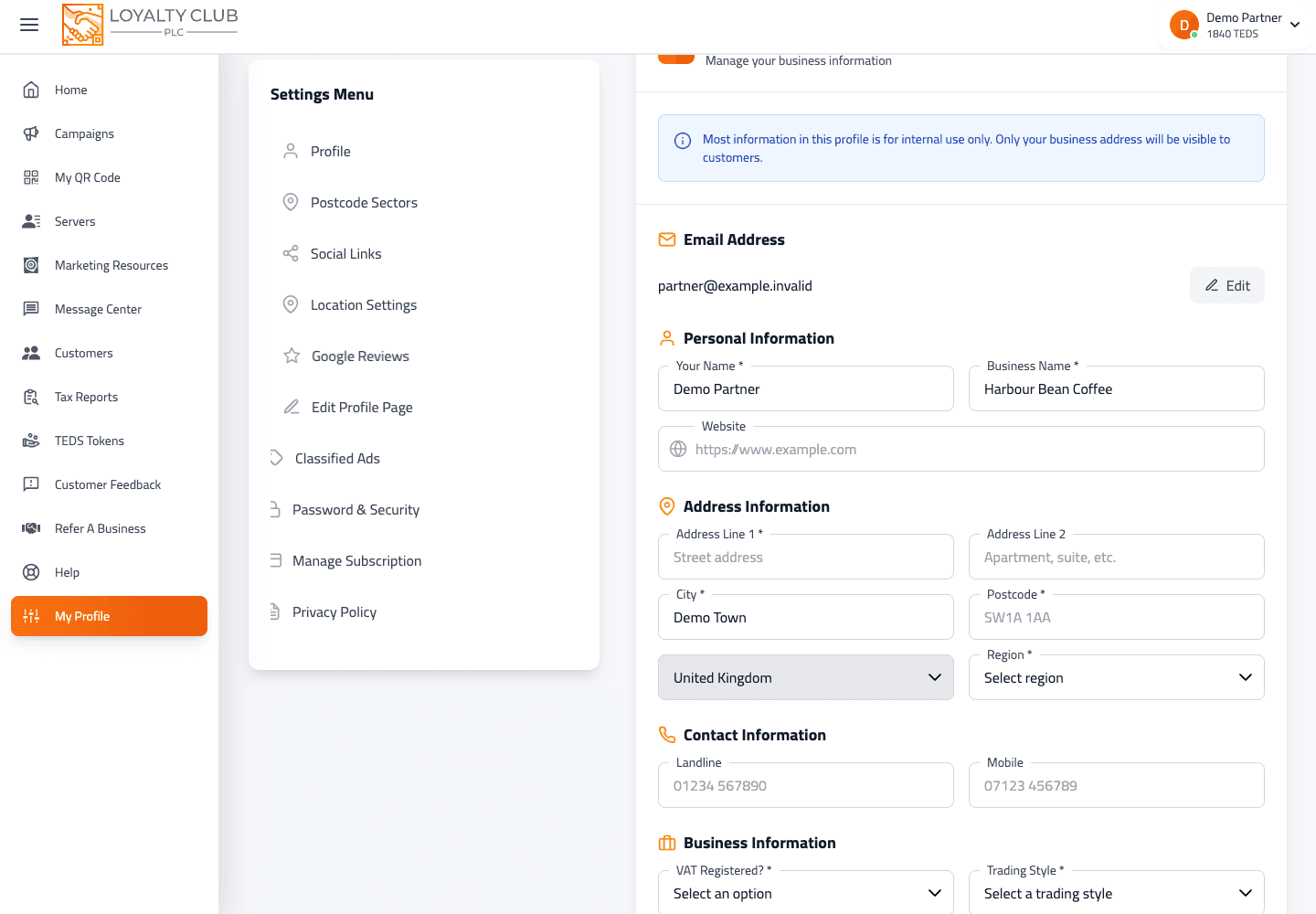
- 01Open Settings → Profile
From the portal sidebar.
- 02Edit the email field
The email is part of the profile form. Change it and click save.
- 03Save the profile
Saves through the same submit as the rest of your business details.
The email becomes the new sign-in email. Whether a re-verification email is sent to the new address is implemented at the backend level — if it is, watch for a verification link in the new inbox.
It is also where replies to your club emails land, unless you have entered a different address under Replies go to in the email editor. If replies should reach a shared inbox instead, set that address in each email's Sending panel — see Designing a club email.
Optional: security code
The Password & Security panel also has a 6-digit security code feature alongside the password fields. This is a separate code (not your password) used for verifying high-risk actions. Setting it up is optional. The fields work the same way as the password change: current security code, new security code, confirm new security code.
Lost access entirely
If you can’t sign in and can’t access your registered email (e.g. closed company email), open a ticket with whatever proof of business ownership you can provide. We can verify and recover manually.
In one sentence
Email = Settings → Profile → edit email field. Password = Settings → Password & Security → three-field change.