

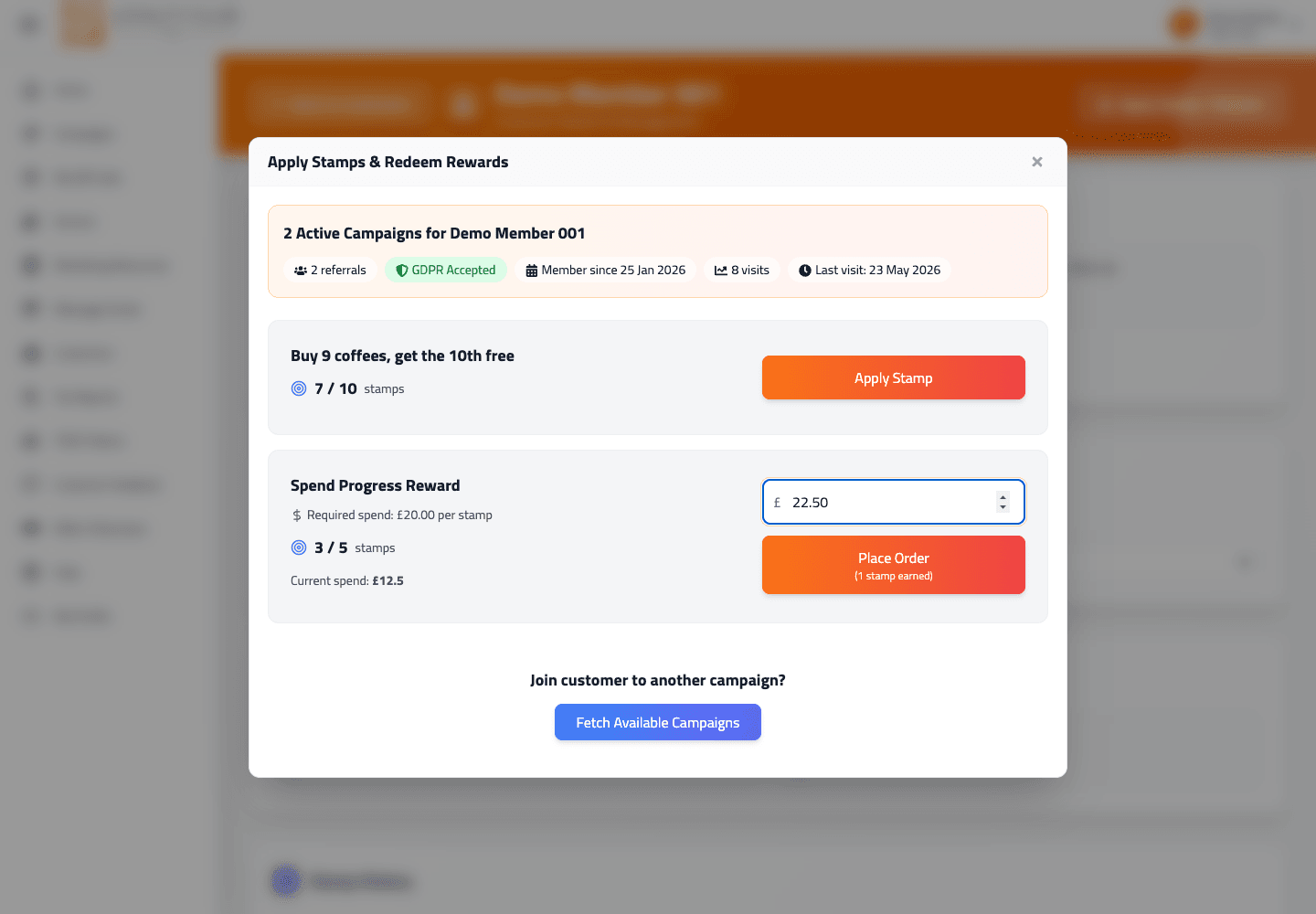
When a customer presents a completed stamp card to redeem the reward in your shop, the scanner page surfaces a Redeem Coupon button alongside the Apply Stamp button on that campaign.
At the till
- 01Scan the member’s QR
Same as for a regular stamp scan — open the scanner, point at their QR.
- 02Find the campaign
The customer’s campaigns appear with stamp counts. Campaigns with a completed card show a Redeem Coupon button (visible when
readyToRedeem > 0). - 03Tap Redeem Coupon
The redemption is processed. A success toast confirms: "Coupon Successfully Redeemed".
- 04Hand over the reward
Whatever the campaign’s reward is — free coffee, free service, a discount.
If your Reward ready club email is switched on, a member whose card has just filled gets an email saying a reward is waiting. If your design includes the QR code block, you can scan the QR straight from that email. See Club emails: what they are and how they send.
What happens behind the scenes
- The customer’s readyToRedeem count for that campaign drops by 1.
- The redemption is logged in the campaign’s history.
Multiple completed cards
If the customer has more than one campaign of yours with a completed card, each shows its own Redeem Coupon button. They choose which to redeem now; others stay completed and ready for next time.
What to know
- Reversing a redemption — whether the portal supports an "undo" path isn’t explicit in the scanner flow. If you redeem in error, open a ticket with the customer ID and we can reverse manually.
In one sentence
Scan QR → find the campaign with a completed card → tap Redeem Coupon → success toast → hand over the reward.