

A message campaign is a one-off message to a list of your customers. It goes out in the app and as a push notification — and it can go by email as well. Sending one is a four-step wizard.
The wizard
- 01Open Message Centre → Campaigns
From the portal sidebar, then Create Campaign. The wizard opens at
/createmessagecampaign. - 02Step 1 — Campaign details
Pick a type card (see the table below), then give the campaign a name. The name is for your own reference, so you can find it later — the wizard will not move on without one.
- 03Step 2 — Select your audience
Choose the customer lists or campaign groups to send to, or use Select All. The screen shows how many contacts are available and how many lists you have picked. If you pick none, the message goes to all of your contacts.
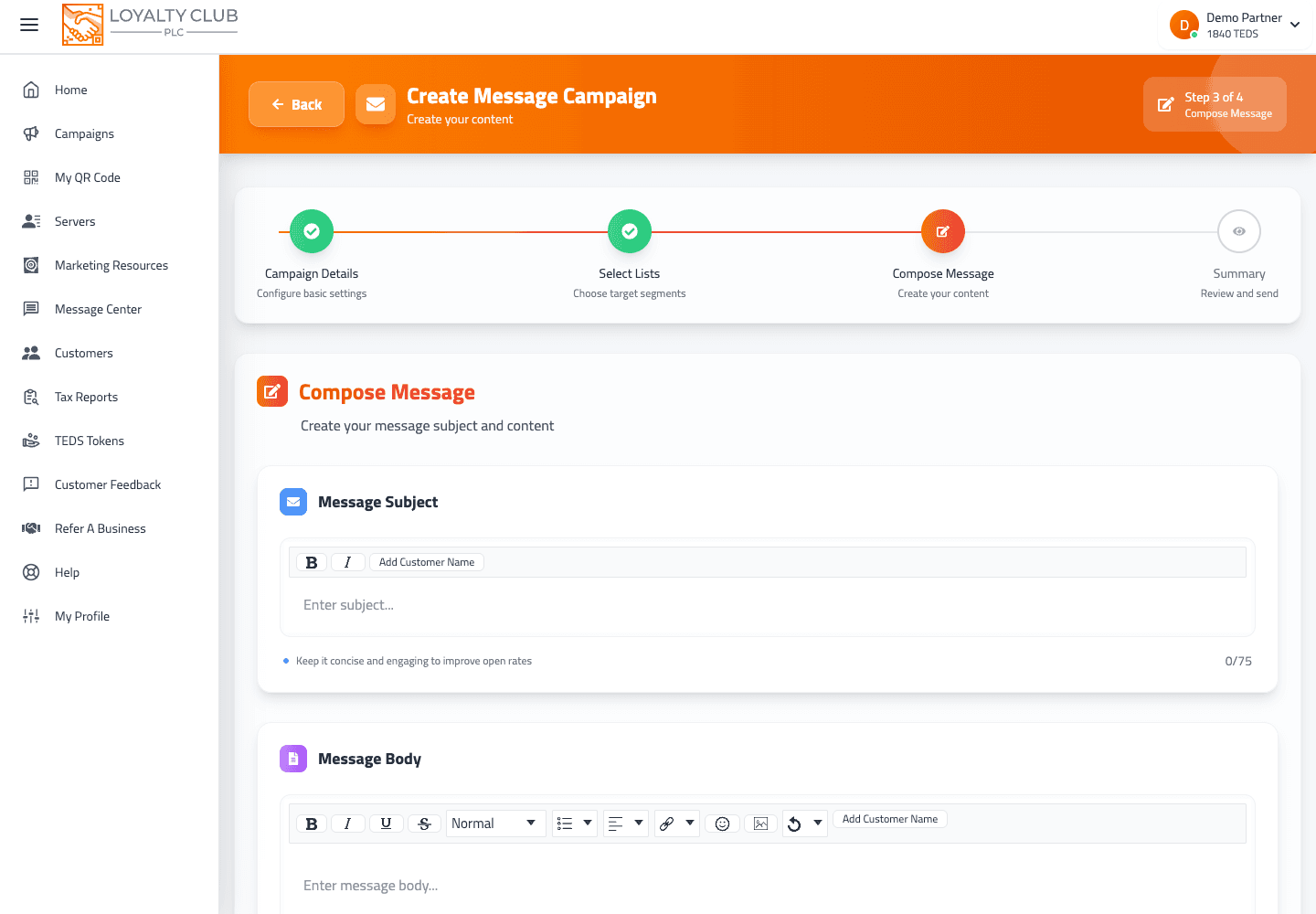
- 04Step 3 — Compose your message
Write a subject line — it is required, up to 75 characters, and it is the first thing customers see. Then write the message in the rich-text editor: bold, italic, underline, headings, lists, alignment, links, images and emojis. You can also switch on Send it as an email too (below).
- 05Step 4 — Review and send
Check the subject, the message and the lists. Then choose Send immediately, or Schedule for later and pick a date and time in the future.
The four type cards
| Card | What happens next |
|---|---|
| Message campaign | The ordinary one-off. Name it and carry on through the wizard. |
| Birthday emails | Opens the design of your Dates they told you about email — the automatic email that goes a few days before a date a member told you about. |
| Anniversary emails | Opens the same email. A birthday and an anniversary are both dates a member asked you to remember, so one email covers both. |
| Review request emails | Opens the design of your Review request email. When it sends is set in Review Growth → Review Setup. |
The last three are not one-offs: they are set up once and then send themselves. See Birthday and anniversary emails and Asking for Google reviews by email.
Personalising the message
Type a placeholder and it is replaced for each customer when the message goes:
{name}— the customer's first name. "Hi{name}" becomes "Hi Sarah".{campaignname}— the name of the campaign.
Sending it as an email too
On step 3, Send it as an email too adds an email to the campaign. Pick which of your email designs to use and, if you like, write an Email subject line for the inbox. Step 4 then shows an Also by email card, so you can see what will go.
- The email goes only to members who have agreed to hear from you and have not unsubscribed, so it usually reaches fewer people than the in-app message. The review step does not show an email count, because who can receive it is only worked out when it sends.
The detail — including the daily limit and the first-campaign review — is in Sending a message campaign by email.
Your first email campaign is read by our team before the email goes. The in-app message and push notification go straight away as normal; only the email waits, and it happens once, not every time.
Editing a scheduled campaign drops its email. The in-app message and push keep their schedule, but the email half is lost. If you need to change a scheduled campaign that includes an email, delete it and create it again.
After sending
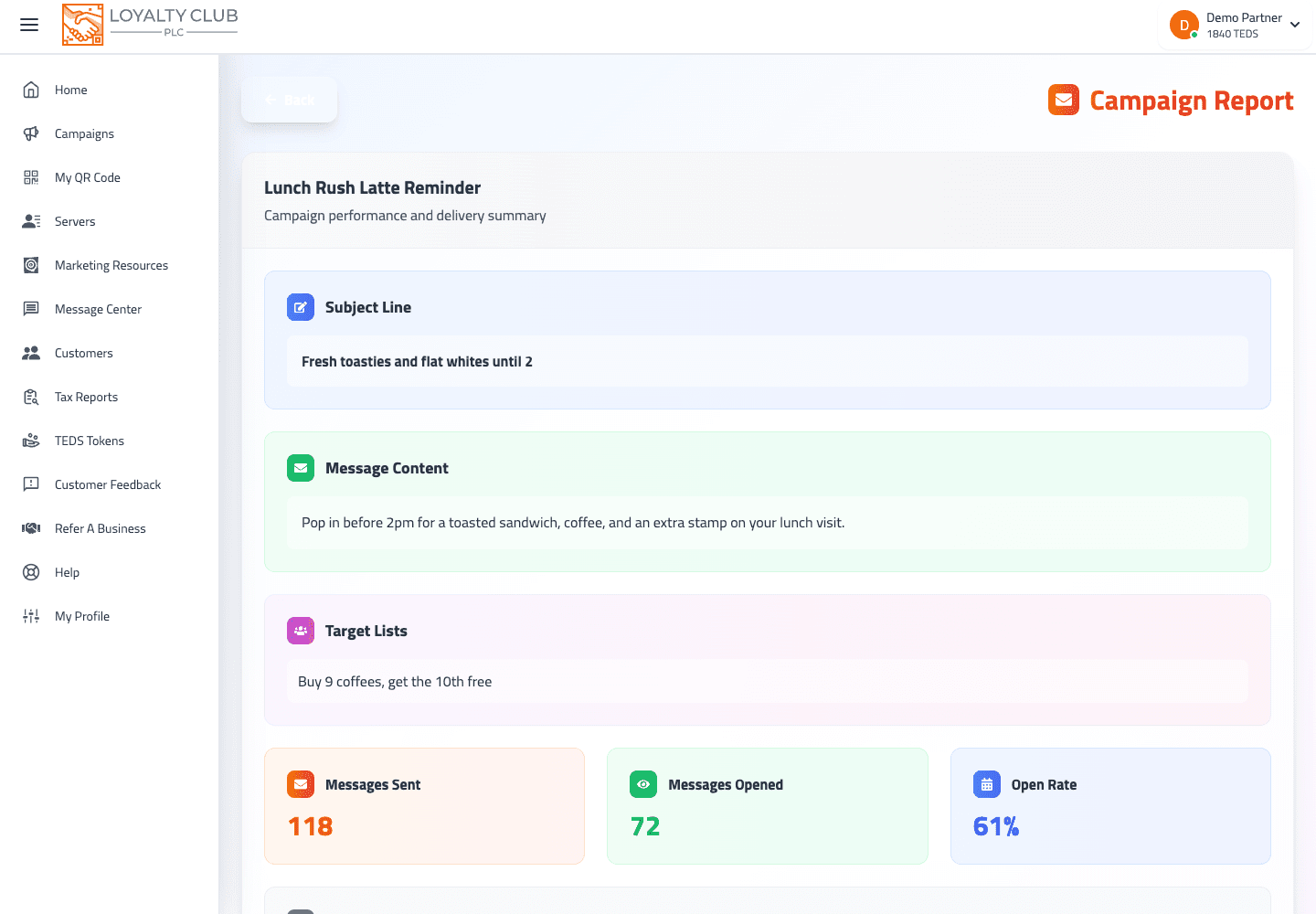
Your campaigns are listed under Message Centre → Campaigns (/messagecampaigns), with the name, status, sent date, number of recipients and number of opens.
| Status | Means |
|---|---|
| Scheduled | Waiting for its send time. Open it to make changes before then. |
| Sent | Gone. Open it to see Messages Sent, Messages Opened and the Open Rate. |
| Held for review | The in-app message and push have gone; the email is waiting to be read by our team. Only a club's first email campaign is held. |
To remove campaigns you no longer need, delete them one at a time, or select several and delete them together.
In one sentence
Message Centre → Campaigns → Create Campaign → pick Message campaign and name it → choose your lists → write the subject and message (and, if you like, switch on Send it as an email too) → send now or schedule it.