

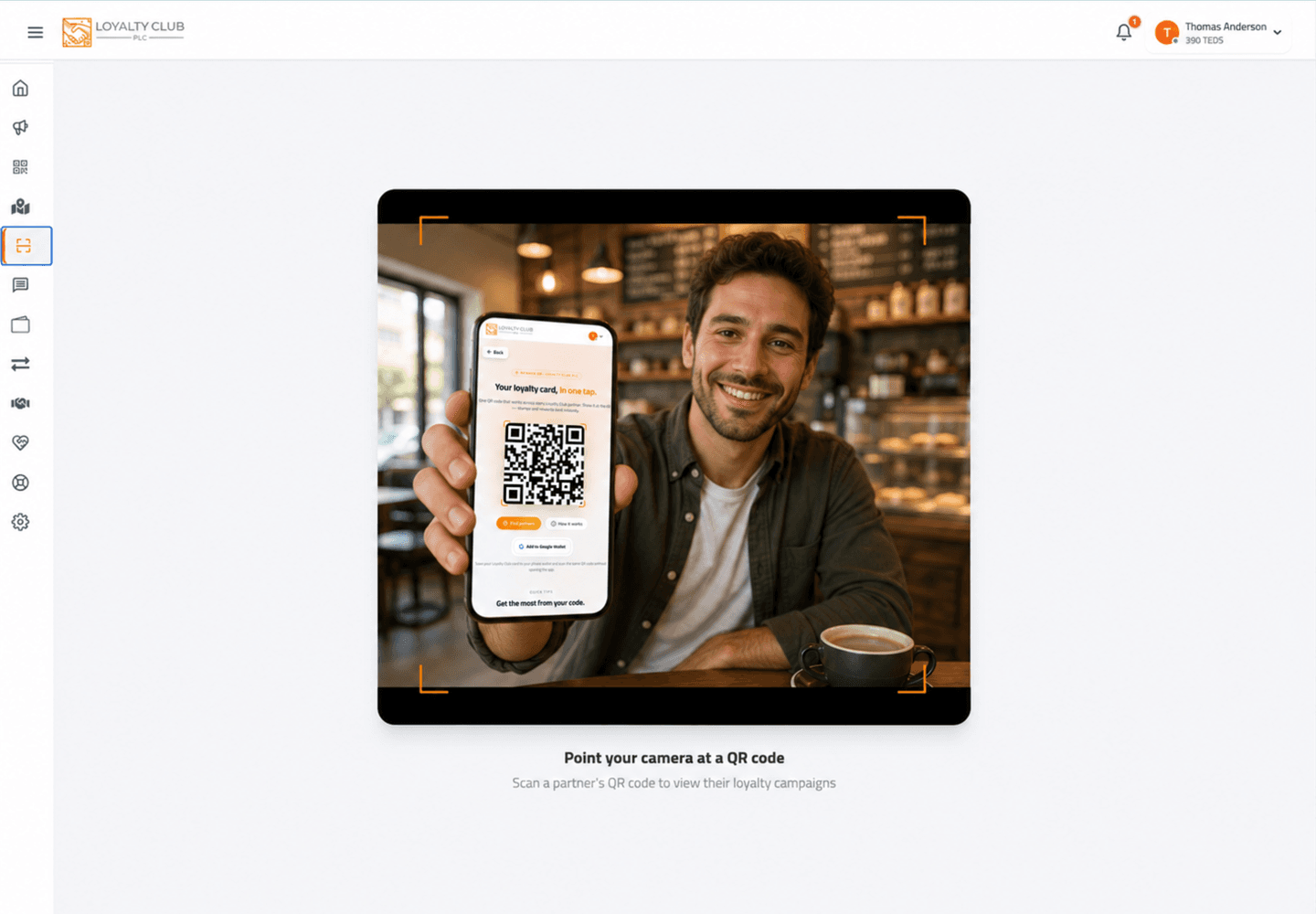
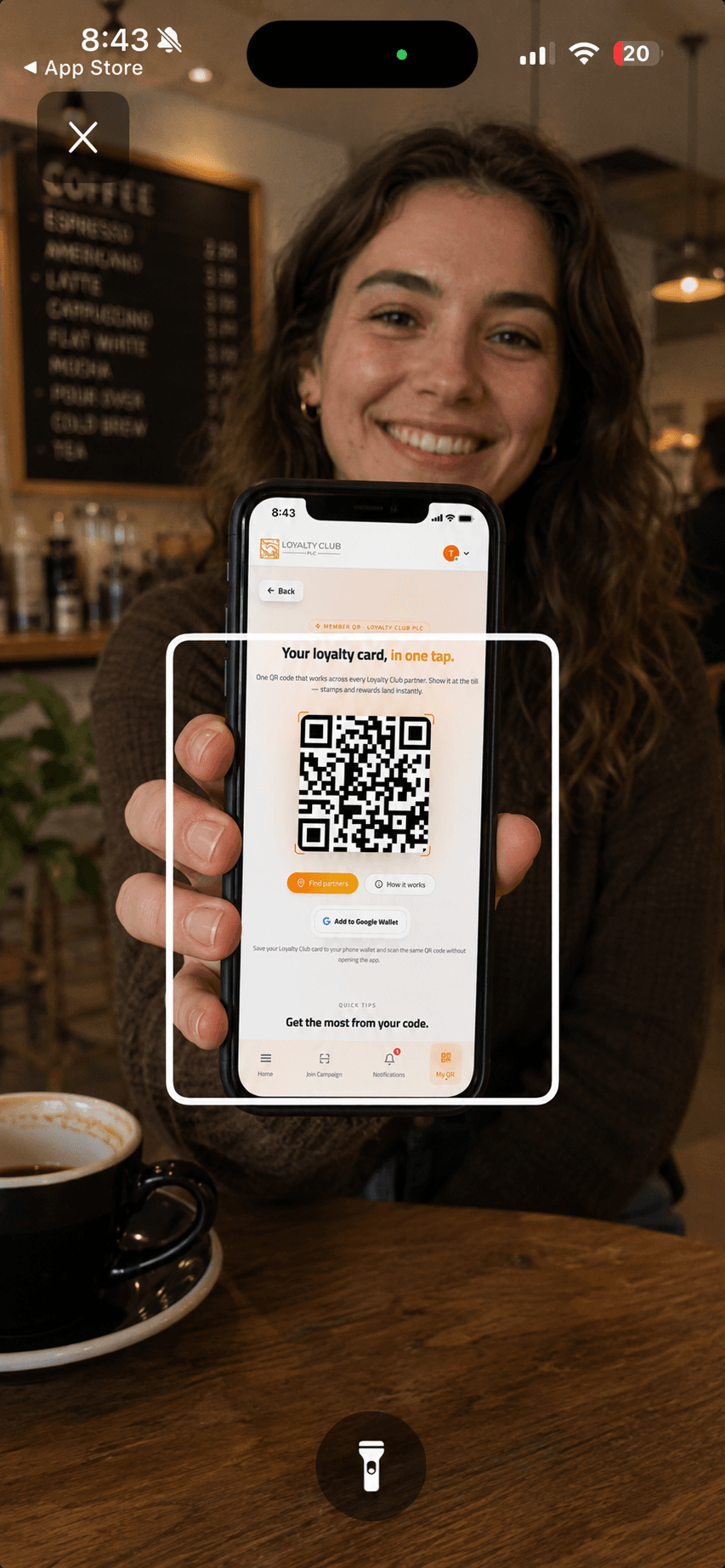
Member presents their QR; your scanner won’t lock onto it. Triage path:
Step 1 — Brightness
Most common cause. Member’s screen brightness is too low for your camera to detect the QR pattern reliably. Ask them to bump up brightness on their phone.
Step 2 — Glare
Till lighting can wash out the screen. Ask them to tilt the phone or step half a pace to one side.
Step 3 — Wrong screen
Members occasionally show the wrong thing. Confirm they’re showing their own member QR — the My QR screen in the app, their card in Apple Wallet or Google Wallet, or the QR code in one of your club emails all carry it — not a code from another app.
Step 4 — Fallback: manual stamp via Customers
If the QR genuinely won’t scan, you can apply a stamp manually from the Customers page.
- 01Open Customers
From the portal sidebar.
- 02Search the member
By name or email substring — pagination + search are the only filters currently.
- 03Open their detail page (View)
Routes to
/customer/{id}. - 04Apply the stamp from the customer detail page
The customer detail page exposes Apply Stamp (and Redeem Coupon if a card is full) — see The customer directory.
If the member isn’t in your Customers list yet (first visit), use + Add customer with their email and name first.
When to escalate
If the scan issue is consistent across many members on the same device, the issue is likely your scanner device — try closing and reopening the app, restarting the device, or updating from the App Store / Play Store. Try a different device too. If it’s consistent across all devices, open a ticket — likely a backend issue.
In one sentence
Brightness → tilt for glare → confirm it’s the My QR screen → fallback to manual Apply Stamp from the customer detail page.