

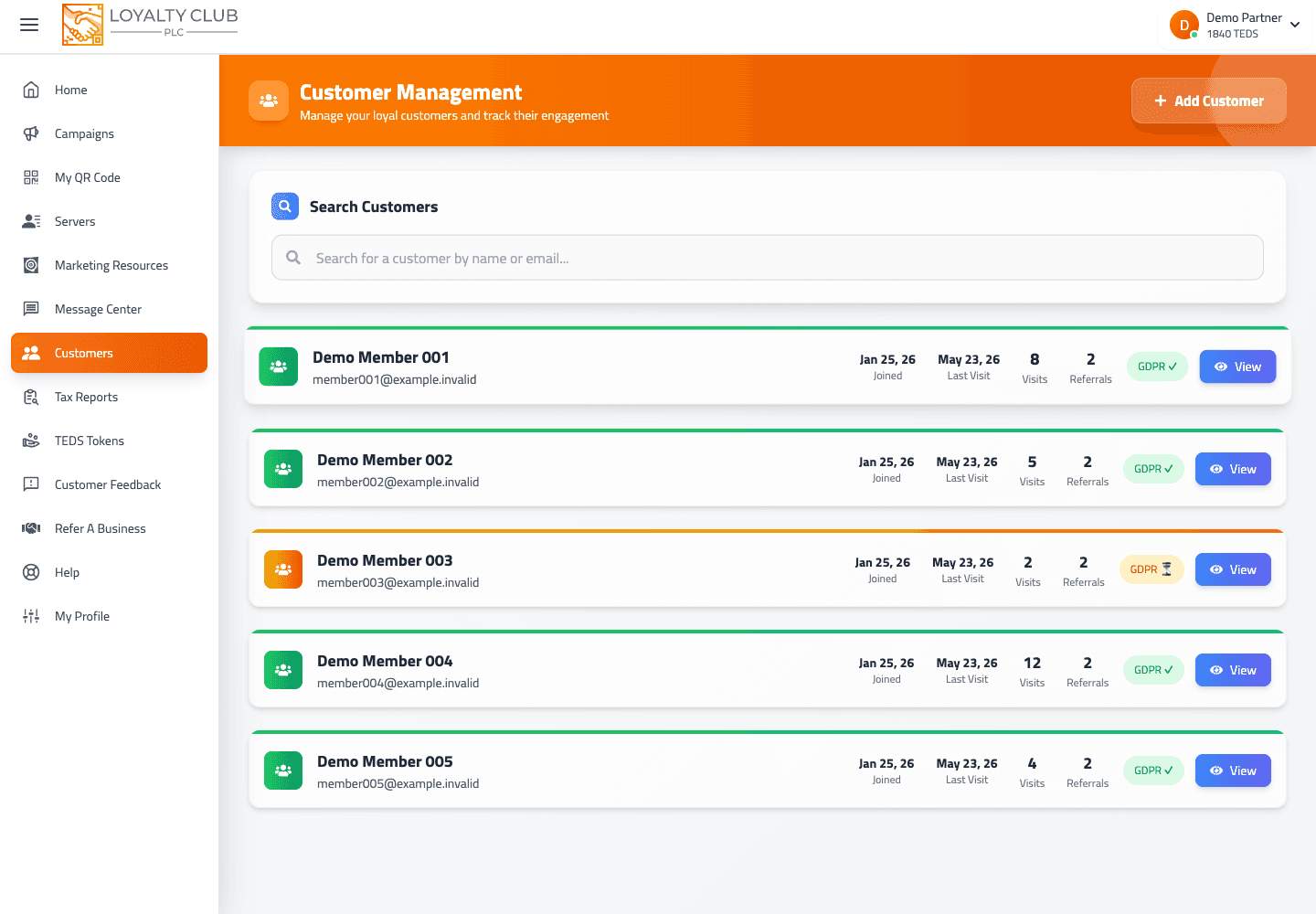
The Customers page is your view of every member enrolled in any of your campaigns.
What you see in the list
Each customer row shows:
- Name
- Joined — the date they enrolled in their first campaign of yours
- Last visit — the date of their most recent stamp (or "Never" if none yet)
- Visits — total visits recorded
- Referrals — count of friends they’ve successfully introduced
- Opted in / Not opted in — whether they said yes to offers from you. The members app asks "Want offers from …?" with your name the moment someone joins you, and a member can change their answer later. Only opted-in members get your campaign push notifications and every club email except the welcome.
Searching
A single search bar at the top filters by name or email substring. Typing is debounced — results update about half a second after you stop typing.
There’s no campaign filter, activity filter or sort dropdown currently — just search + pagination.
Pagination
20 per page. Arrow controls at the bottom of the list.
Customer detail page
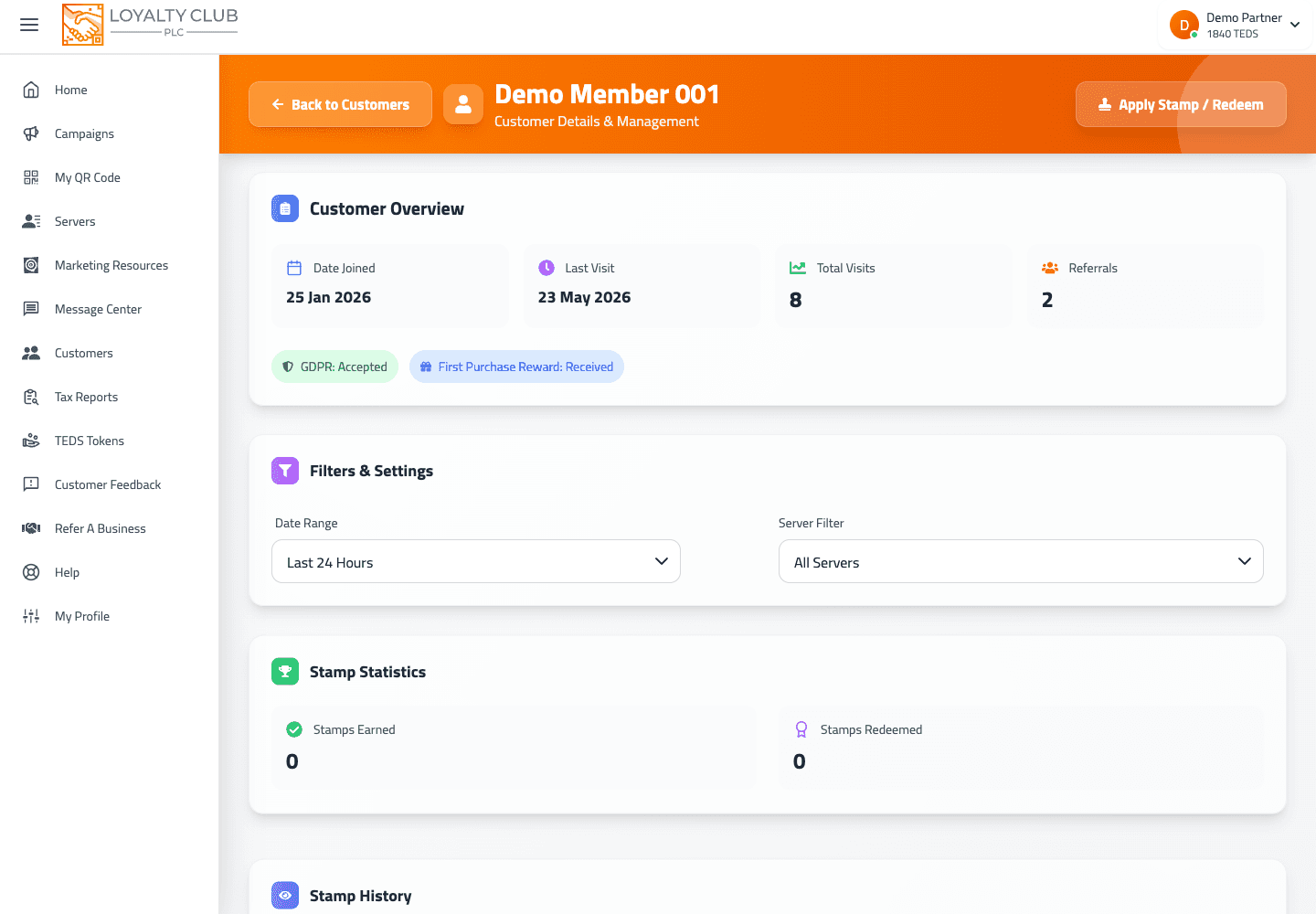
Tap a customer’s row (or the View button) to open /customer/{id}. From there you can:
- See the customer’s stamp history across all your campaigns, in date order.
- Filter the stamp history by staff member — useful for confirming who awarded what.
- Apply a stamp manually (when scanning isn’t practical).
- Revoke a stamp that was issued by mistake.
- Redeem a reward if the customer has a completed card.
Adding a customer manually
If a member can’t scan their QR (forgot their phone, app not working), use + Add customer from the Customers page. Fill in name, email, phone and any notes. They’re registered as your customer immediately and you can apply stamps from the customer detail page.
If they later sign up to Loyalty Club themselves with the same email, the records merge.
Adding someone joins them to your club, so if your Welcome club email is switched on, it goes to the address you entered about five minutes later. Check the spelling of the email address before you save. See Club emails: what they are and how they send.
In one sentence
Customers page = searchable, paginated list of your members; tap a row for stamp history (filterable by staff) and per-customer apply/revoke/redeem actions.