

You sent a message and the delivery count looks low. Triage in this order.
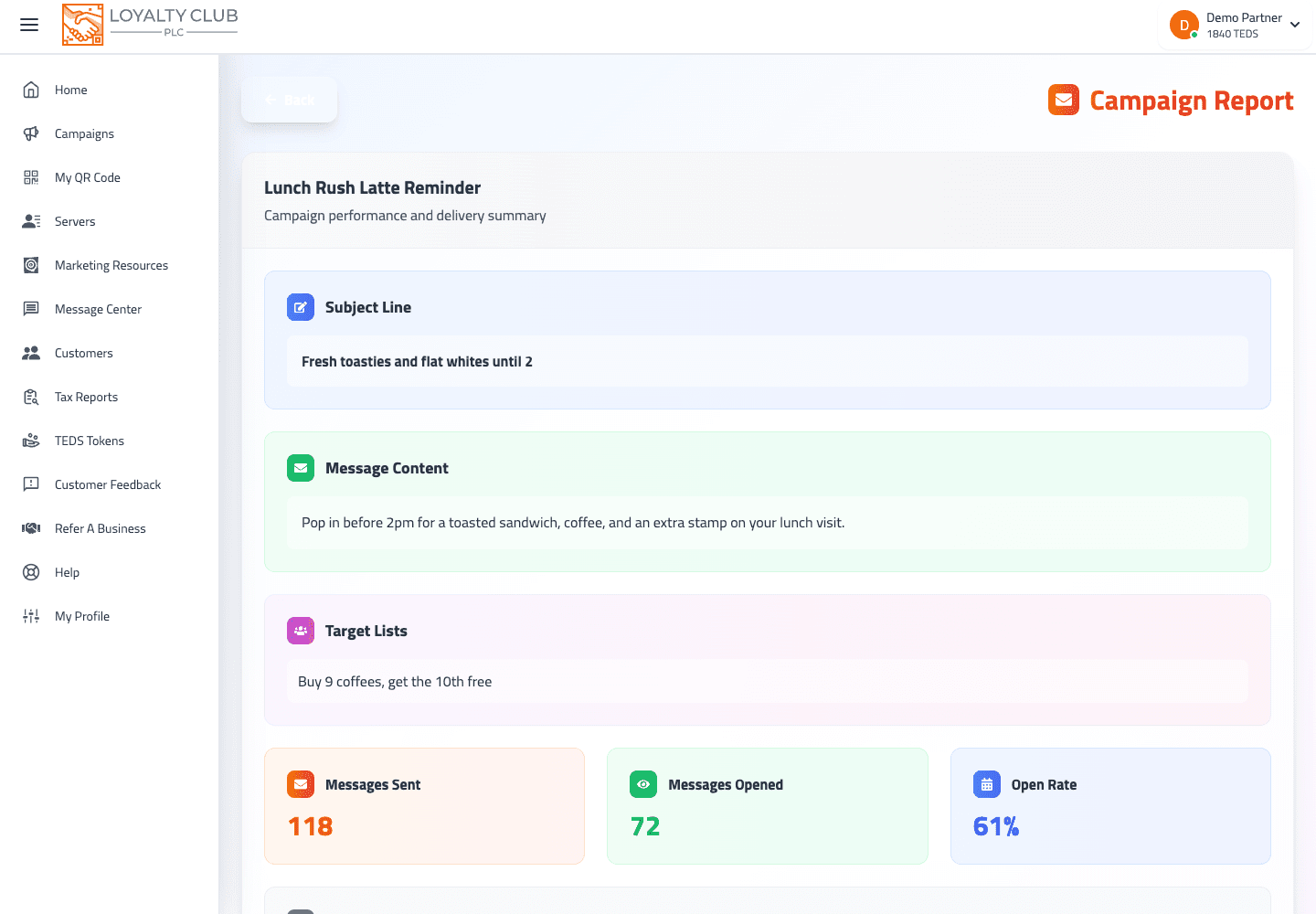
Step 1 — Confirm it actually went
Open Message Centre → Campaigns (/messagecampaigns) and find your campaign.
- Scheduled — it has not gone yet. It will send at the time you chose.
- Sent — it has gone. Open it to see Messages Sent, Messages Opened and the Open Rate.
- Held for review — the in-app message and push have gone; the email half is waiting to be read by our team (see below).
If it is not in the list at all, it was never sent or scheduled — start the wizard again.
Step 2 — Check who has said yes to hearing from you
This is the most common reason counts look low. When someone joins your club, the members app asks them "Want offers from your business?" A campaign's push notification, and every club email except the one-off welcome, only reach members who said yes — and a member can turn it off again at any time. Nothing is ever ticked for them, and closing the question without answering is not a yes.
So a list of 200 customers can reasonably mean far fewer phones buzzing. That is consent working as it should, not a fault.
Step 3 — Check the lists
Open the campaign to see the lists that were selected. The lists are chosen in step 2 — Select your audience of the wizard; a smaller list than you meant is the next most common cause. (Picking no list at all sends to all of your contacts.)
Step 4 — Message campaign or customer alert?
A common mix-up:
- Message campaign (the Campaigns tab) — a broadcast you write and send.
- Customer alert (the Customer alerts tab, formerly Action Alerts) — an automatic message that only fires when a customer does something, such as earning a stamp.
If no customer has done the thing an alert waits for, it has not fired — that is expected. Check at /actionalerts that the alert is switched on and that recent customer activity matches it.
If it was an email
Emails pass through a few more filters than the in-app message, so the email count is usually the smaller number. A member does not receive a club email when:
- They have not said yes to your offers. Every email except the one-off welcome needs it.
- They unsubscribed from your club's emails. It stops yours only; their card, stamps and your in-app messages are unaffected.
- Their address bounced as undeliverable. A dead address stops receiving club email from every business.
- It was your first email campaign. Its email half is Held for review until our team has read it.
- You reached the daily limit. There is a cap on how many campaign emails one business can send in a day; the portal tells you the numbers if you hit it.
The full checklist, including the automatic emails, is in A member didn't get my club email.
When to open a ticket
If delivery looks materially wrong — for example you sent to 200 members who said yes and none received it — or a campaign has been Held for review for longer than you expected, open a ticket with the campaign name and roughly when you sent it.
In one sentence
Confirm it went (Scheduled, Sent or Held for review) → remember only members who said yes to your offers get push and email → check the lists → make sure you did not mean a customer alert → for emails, check the extra filters.