

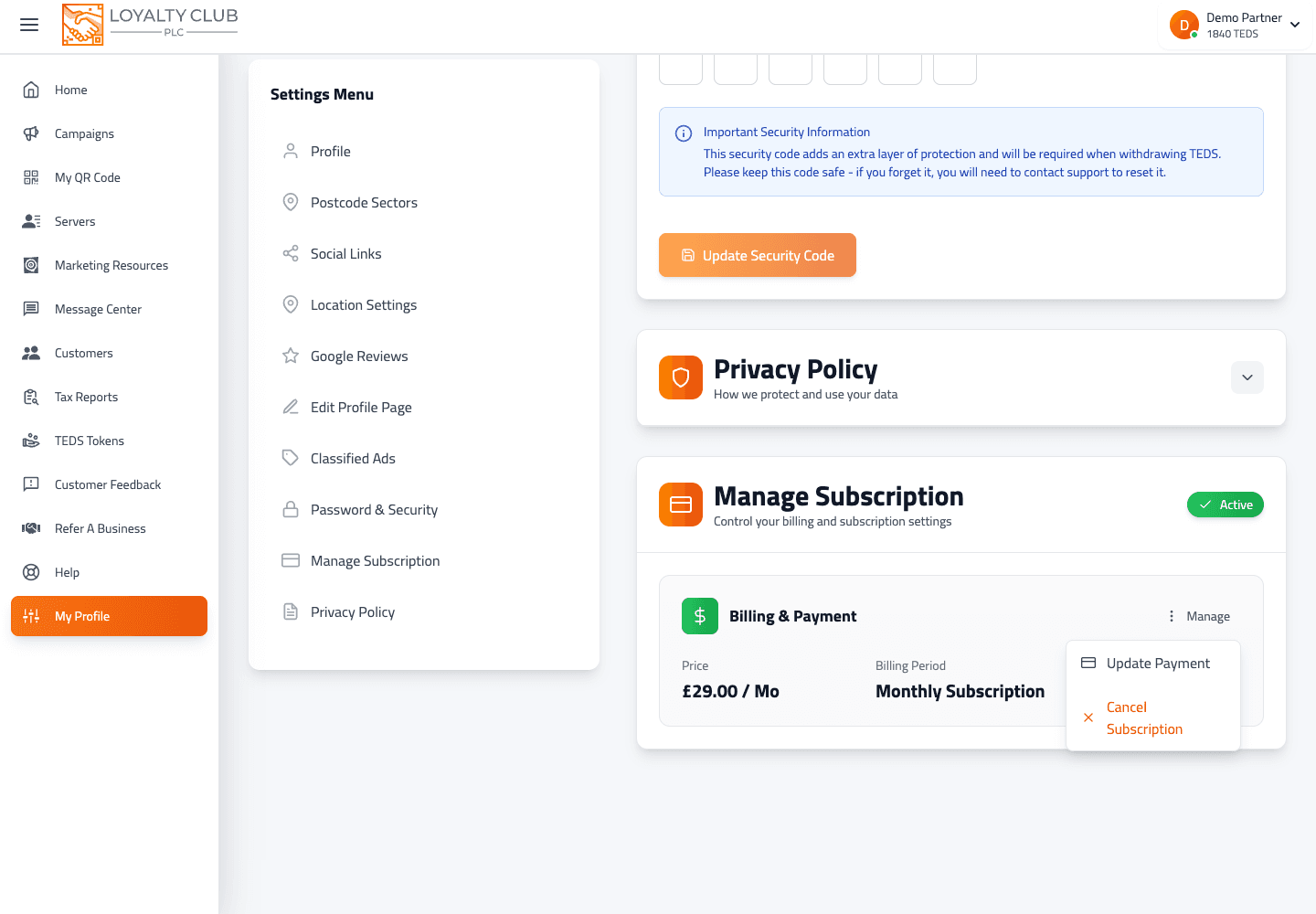
The card we charge for your subscription is updateable any time from Settings → Manage Subscription.
How to update
- 01Open Settings → Manage Subscription
The current card is shown by brand (Visa / Mastercard / Amex) and last 4 digits.
- 02Click Update
The Update Payment Method modal opens with a Square card form (cardholder name, card number, expiry, CVC).
- 03Enter the new card
Fill in the fields. Square handles tokenisation so the card details never touch our servers directly.
- 04Save
The new card becomes the default for future subscription charges.
What the new card is used for
- Subscription renewals (monthly or yearly).
- Retried previously-failed charges — if a recent renewal failed and you’re in the 5-day grace window, updating the card auto-retries against the new one.
What to know
- Multiple cards on file — currently the portal shows one card; whether a multi-card setup is supported isn’t spelled out in the UI.
- Pre-update verification charges — the standard Square flow may briefly authorise a small amount to confirm the card; this isn’t shown in the portal UI directly.
In one sentence
Settings → Manage Subscription → Update → enter the new card via Square → save. Becomes the default immediately.