

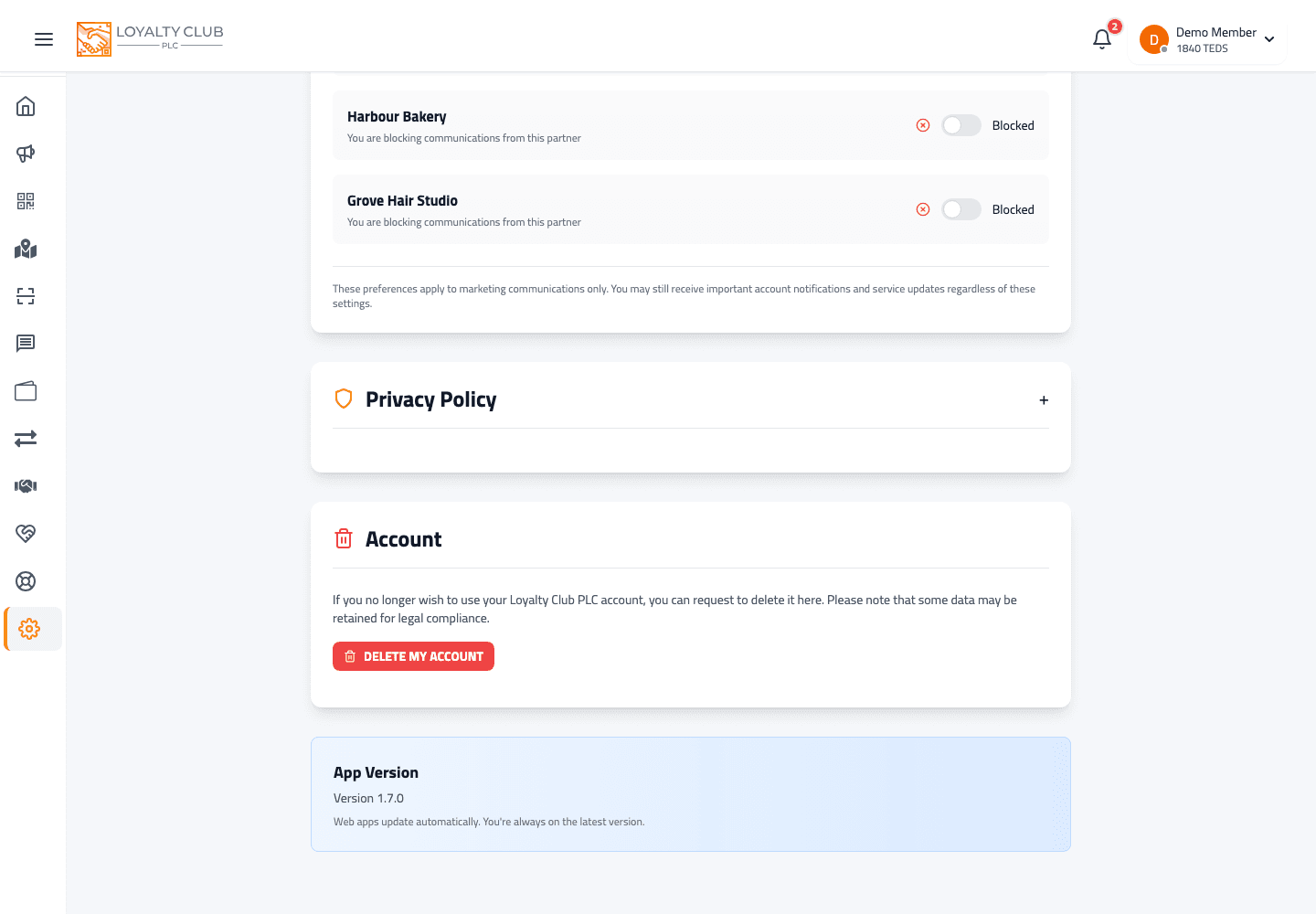
You can delete your Loyalty Club account from Settings. The flow requires re-entering your password as a security check.
How
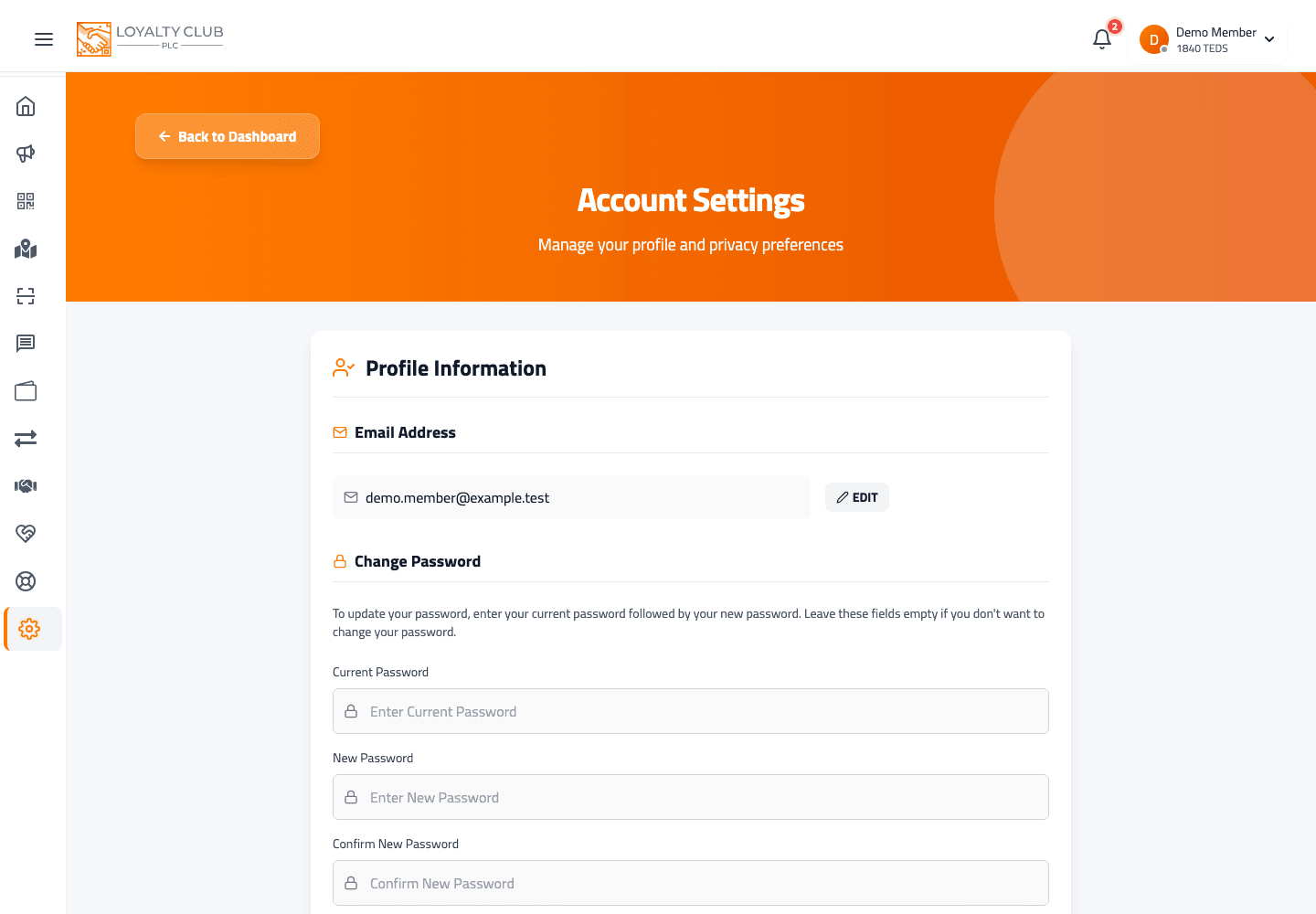
- 01Open Settings
From the home screen.
- 02Find the Delete Account section
At the bottom of the Settings page.
- 03Enter your password
The Delete Account input asks for your password. The action button is disabled until you enter one.
- 04Confirm
If the password is wrong, an inline error shows ("Invalid password. Please try again.")
- 05Logout
On successful deletion the app logs you out.
What to know
- Exactly which data is deleted vs retained for compliance — handled securely in the backend and not shown in the Settings flow.
- Reversibility window — not shown in the current product. Treat deletion as permanent.
- Anything you have not used yet — stamps in progress and any balance you are holding go with the account. Use them up before you delete.
In one sentence
Settings → Delete Account → enter password → confirm. Treat as permanent.