

They are switched on per account while we prove them in real service. Ask us on the contact form if you would like them enabled.
Setup is five steps at /bookings/setup, and every one of them has a working default. Clicking straight through leaves you with a functioning booking page rather than an empty one — so the wizard is a set of decisions to review, not a form to fill in.
Afterwards, everything lives at /bookings/settings on one scrolling page.
Step 1 — The basics
Appointments or tables
The choice that shapes the whole booking page.
Appointments — one customer, one slot, for a set length. Each service carries its own duration and price, and customers can ask for a particular team member if you let them.
Tables and parties — customers reserve for a party size rather than a service. Three extra settings appear:
| Setting | Default | What it means |
|---|---|---|
| Covers per sitting | 5 | How many separate bookings you can seat in the same slot. Effectively how many tables you hand to online booking. |
| How long a sitting lasts | 90 minutes | How long a table is held. A seven o'clock booking frees that table at half past eight. |
| Smallest party | 1 | Below this cannot be chosen online. |
| Largest party | 8 | Bigger groups are told to contact you — large tables deserve a conversation, not a form. |
A table of two and a table of eight each take one cover from the sitting. Covers per sitting counts bookings, not people — set it to the number of tables you are willing to fill online, not the number of seats in the room.
Confirm bookings automatically
On by default: a free slot books instantly and the customer is confirmed on the spot.
Off: every request lands in your diary as Awaiting you until you tap Confirm or Decline. The customer is told you confirm each booking yourself and they will hear back shortly — nothing is promised until you act.
An unapproved request keeps its slot reserved indefinitely, so nobody else can take it while you decide. That is the right behaviour — but it means a request you never answer quietly blocks that time. Approval mode needs you to work the Needs you queue.
The three timing controls
| Setting | Default | What it does |
|---|---|---|
| Shortest notice | 1 hour ahead | How close to the start time someone may still book. Your preparation buffer. |
| How far ahead people can book | 30 days | Your booking horizon. Slots beyond it do not appear yet. |
| Customers can cancel up to | 24 hours before | Your cancellation window — see below. |
The cancellation window decides refunds, not whether a customer may cancel. Outside it, customers cancel themselves and any prepayment refunds automatically. Inside it, the app tells them to contact you and the refund becomes your decision.
Step 2 — Services
What customers actually pick from. Each one carries:
- A name they will recognise — "Cut and finish", not "Service A".
- How long it takes, from 15 minutes to 4 hours.
- A price, or zero for free.
- A description and an icon, both optional.
- A turnaround gap — up to 30 minutes held after the appointment for clean-down. The customer never sees it, but nobody can book into it.
- Who can do this, if you have bookable staff. Leave it empty and anyone can.
- Capacity, when no named staff are attached: how many of this service can run at once.
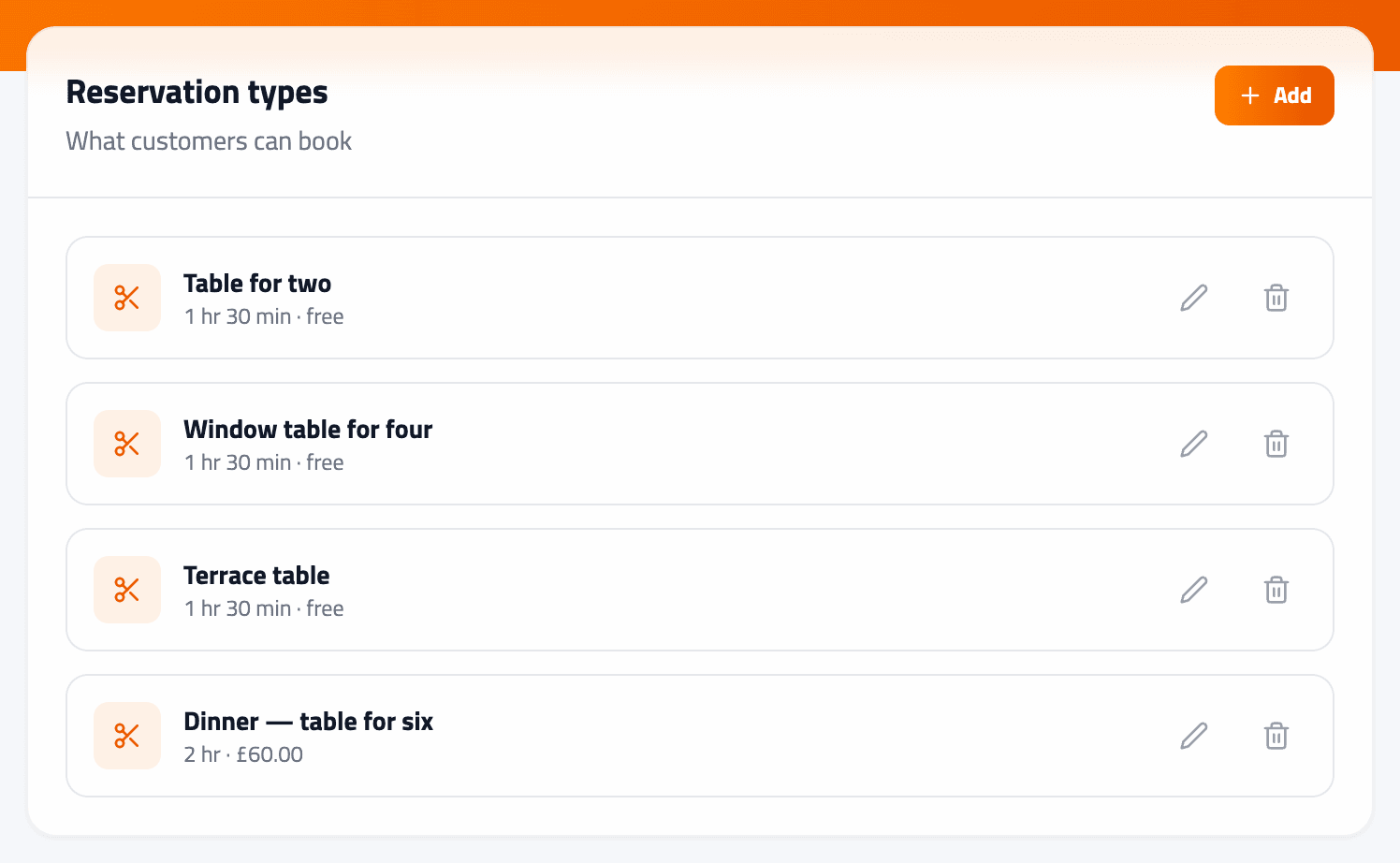
In tables mode this step is optional — skip it and a standard Table reservation is created for you, using your sitting length and covers.
A retired service disappears from your booking page, and the portal tells you how many bookings already made for it still stand. Those keep the name, price and length they were booked at — booking records are snapshots, so repricing or renaming never rewrites history.
Step 3 — Your team
Switch someone on and customers can request them by name. Leave everyone off and bookings are taken for the business as a whole, which keeps you free to assign the work yourself.
Team members come from your existing staff — see Adding a staff member. Each bookable person can carry their own booking hours where they differ from the business's.
Staff who are bookable also get something useful on the day: a Mine / Everyone toggle on the diary, so a stylist can narrow the day to their own column while whoever answers the phone keeps the whole book.
Step 4 — When you take bookings
Bookable hours are separate from your opening hours, and that is the point: a salon can open at nine and only take appointments from ten. On first setup they are filled in from the opening hours on your profile, so you are adjusting rather than starting blank.
Each day can carry more than one window, for a genuine split shift over lunch.
Slot spacing decides how often a new start time is offered — 15 minutes by default, giving 10:00, 10:15, 10:30 and so on. Sixty minutes offers the hour only. Tighter spacing gives customers more choice; wider spacing keeps your diary tidy.
A slot is only offered if the whole appointment — including its turnaround gap — fits before you close. Nothing can be booked that runs past the end of the day.
Step 5 — Payment and rewards
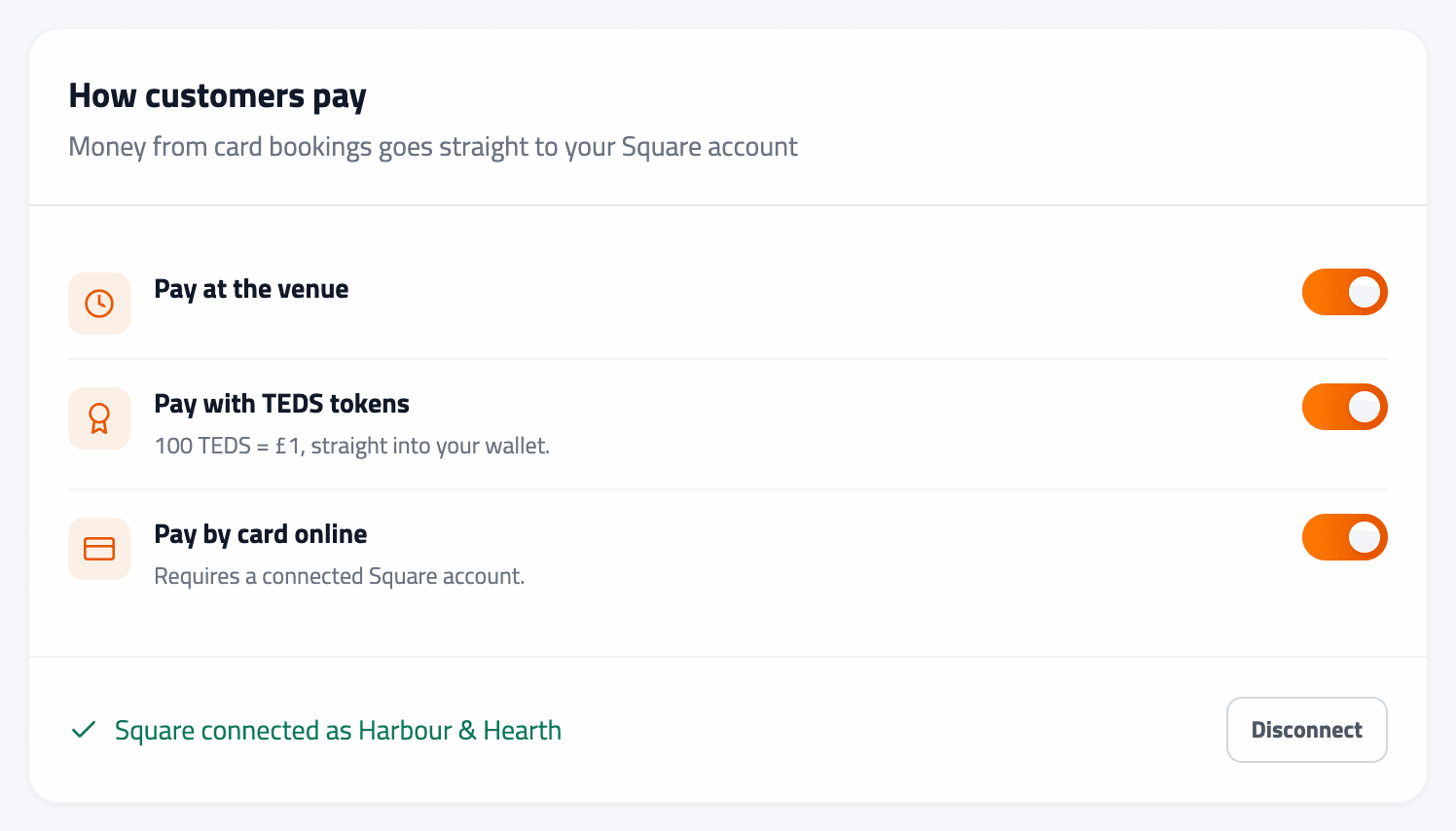
How customers pay
Pick everything you want to accept; at least one is required.
Pay at the venue (on by default) — they book without paying and settle in person exactly as they do now.
Pay by card online — card, Apple Pay or Google Pay through your own connected Square account. This one needs Square linked before it can be switched on.
Card payments settle into your own Square account. Loyalty Club never holds your takings. If the Square connection later breaks, card payments switch themselves off and you are notified — bookings keep working on the other payment routes until you reconnect.
Full detail, including what happens to unpaid holds and refunds, is in Payments, no-shows and refunds.
Loyalty rewards
Give a stamp when someone attends (on by default) — the whole point. Marking a booking attended awards the stamp automatically.
Close off prepaid bookings for me (on by default) — bookings already paid online are marked attended about four hours after they end if you have not got to them. Unpaid bookings always wait for your tap, because turning up is the thing being rewarded and your tap is the proof.
Which campaign gets the stamp — every stamp belongs to a campaign.
With one active campaign, attendance stamps go there automatically. Run several and you have to pick one — otherwise the stamp has nowhere to land and none are issued. The booking still records why, so you can spot it after the fact rather than wondering.
Going live, and stopping
Go live at the end of the wizard switches bookings on, and your booking button appears on your business page in the member app.
To stop, Stop taking new bookings at the bottom of settings removes the button. Bookings already in your diary are unaffected — you still run the day for everyone who has booked.
In one sentence
/bookings/setup → choose appointments or tables, add what people can book, set the hours you take bookings for and how people pay, link the campaign that gets the stamp → Go live, and everything stays editable at /bookings/settings.