

They are switched on per account while we prove them in real service. Ask us on the contact form if you would like them enabled.
/bookings is the screen to leave open during service. It answers the three questions you actually have — who is next, what needs me, is this working — in that order.
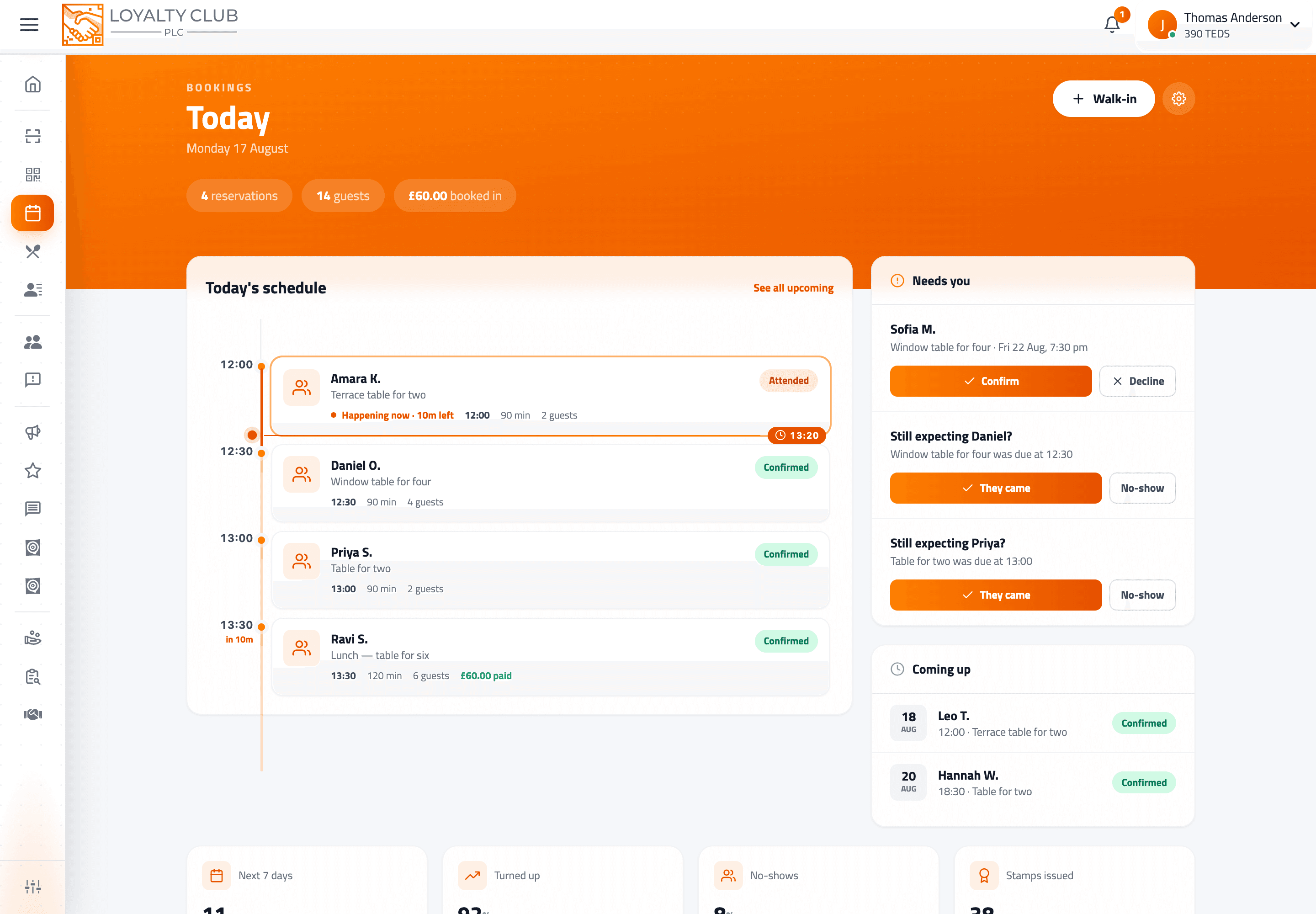
The timeline
The day runs as a vertical rail, spaced by real time rather than as a flat list — so a packed morning and an empty afternoon look different at a glance.
- A live line marks now, and moves as the day does. Before your first booking it sits at the top telling you how long until it; after your last it pins to the bottom.
- The booking happening now is ringed, and says how many minutes are left.
- The next one up shows how long until it starts.
- Finished bookings fade, so your eye goes to what is ahead.
Each card carries the customer's name, what they booked, the time and length, the team member if there is one, the party size for a table, and the price — marked paid when they have already paid.
The status labels
| Label | Meaning |
|---|---|
| Confirmed | Going ahead. |
| Awaiting you | A request needing your approval. |
| Awaiting payment | A card booking whose payment has not completed yet. |
| Attended | They came, and the stamp has been awarded. |
| No-show | They did not come. |
| Cancelled / Cancelled by you | Called off, by them or by you. |
| Expired | A card booking whose payment never completed. |
Needs you
One panel, two kinds of item, and it only appears when there is something in it.
Requests awaiting approval — with Confirm and Decline on the card itself. Confirming sends the customer their confirmation immediately and schedules their reminders. Declining cancels the request, tells them, and refunds anything they had paid.
People you may have forgotten to mark. Anyone confirmed whose slot started more than fifteen minutes ago, with the prompt Still expecting Sarah? and two buttons: They came and No-show. This is the quiet safety net against a day's worth of stamps never being awarded because service got busy.
Approving requests
Only relevant if you turned auto-confirm off.
- 01The request arrives
Your phone gets a Booking request notification, and it appears in Needs you. The customer has been told you confirm each booking yourself.
- 02You confirm or decline
From the panel, or by opening the booking for the full detail first.
- 03They are told either way
Confirming sends Booking confirmed to their phone and their email, and sets their reminders running. Declining sends a cancellation and returns any payment.
A waiting request holds its time so nobody else can take it — which is right while you are deciding, and a problem if you never decide. Clear the queue daily, or run auto-confirm and cancel the rare booking you cannot honour.
Walk-ins
Someone is standing in front of you. Walk-in on the header takes three taps: what they are having, when (defaulting to now, with +15, +30 and +60 to hand), and optionally a name and phone.
They go straight onto the timeline as confirmed, and take a real slot hold like any other booking — so a walk-in cannot be double-booked over either.
A walk-in with no member account attached cannot earn a stamp — there is no card for it to go on. If they are a member, link them when you add the walk-in and marking them attended stamps them as normal.
Marking attended — the stamp moment
This is the action that matters most, and the one your team does dozens of times a day.
Open the booking and tap They came. A stamp drops onto the customer's card with the campaign progress underneath — 4 of 6 towards Coffee Club, or Reward unlocked! if that visit completed it.
| Campaign type | What attendance awards |
|---|---|
| Buy X, get Y free | One stamp per attended booking. |
| Spend-based | Stamps calculated from the booking's price — so a £60 service on a "spend £25" campaign awards two. |
It runs through exactly the same loyalty engine as scanning a member's QR at the till, so booking stamps sit alongside counter stamps in your reports, count towards rewards identically, and trigger the same follow-ons — review requests, referral rewards and the rest.
Someone who books and pays but never turns up earns nothing. That is the correct behaviour for a loyalty scheme: you are rewarding the visit. The one exception is the auto-complete setting, which closes off prepaid bookings about four hours after they end if you have not marked them — so a customer who paid up front is never punished for your busy afternoon.
If no stamp was issued
The booking tells you why rather than staying silent. The two you will actually see:
- No active campaign running — nothing for the stamp to belong to.
- Several campaigns are active — pick which one bookings feed, in booking settings.
Correcting a mistake
Both directions, for seven days after the booking:
- Marked a no-show who was actually there → Actually, they came.
- Marked someone attended who never arrived → Mark as a no-show instead, which takes back the stamps that booking awarded, as long as they have not already been spent on a reward.
Everything beyond today
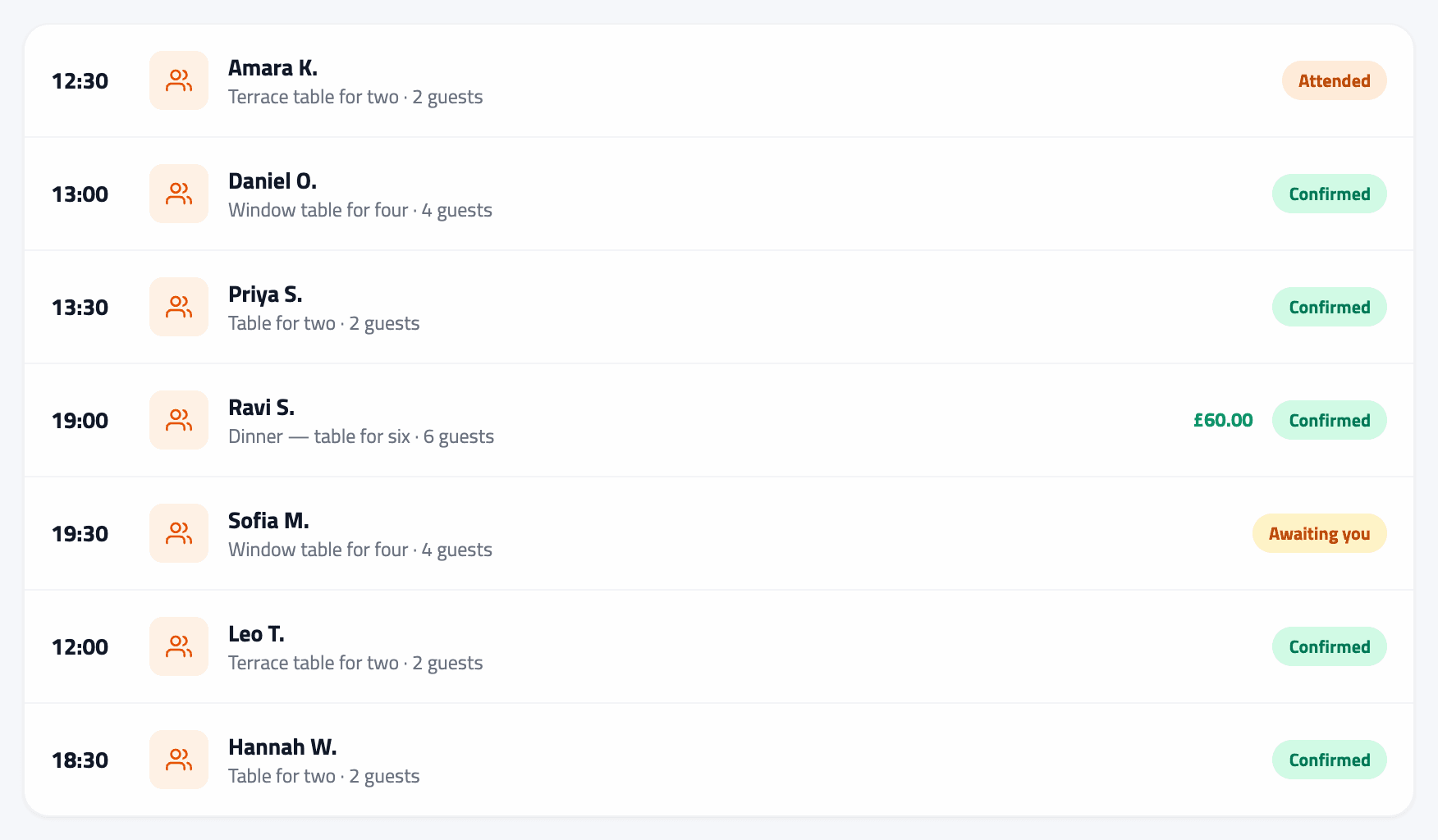
/bookings/schedule groups bookings by day for the next 7 or 30 days, or the past 30. Filter by Confirmed, Awaiting you, Finished or Cancelled — this is the screen for "we're fully booked Saturday, aren't we?"
Staff on the floor
Staff can do the day-to-day: see the diary, approve requests, add walk-ins and mark attendance. Only owners change settings, services and hours.
Anyone customers can book by name gets a Mine / Everyone toggle. It defaults to Everyone deliberately — hiding a booking from the person standing in front of the customer is the expensive mistake.
How you find out without watching
- Fifteen minutes before each booking, a Next up in 15 min push. Where the booking is with a named team member it goes to them; otherwise the whole floor.
- A new booking or request notifies you as it arrives.
- A customer cancelling notifies you, and the slot goes straight back on your availability.
Which categories reach your phone is yours to set — see Choosing what reaches your phone.
In one sentence
/bookings → work the timeline, clear anything in Needs you, add walk-ins as they arrive, and tap They came when someone turns up — which is what awards their loyalty stamp.