

Preferences live on the settings tab of /notifications.
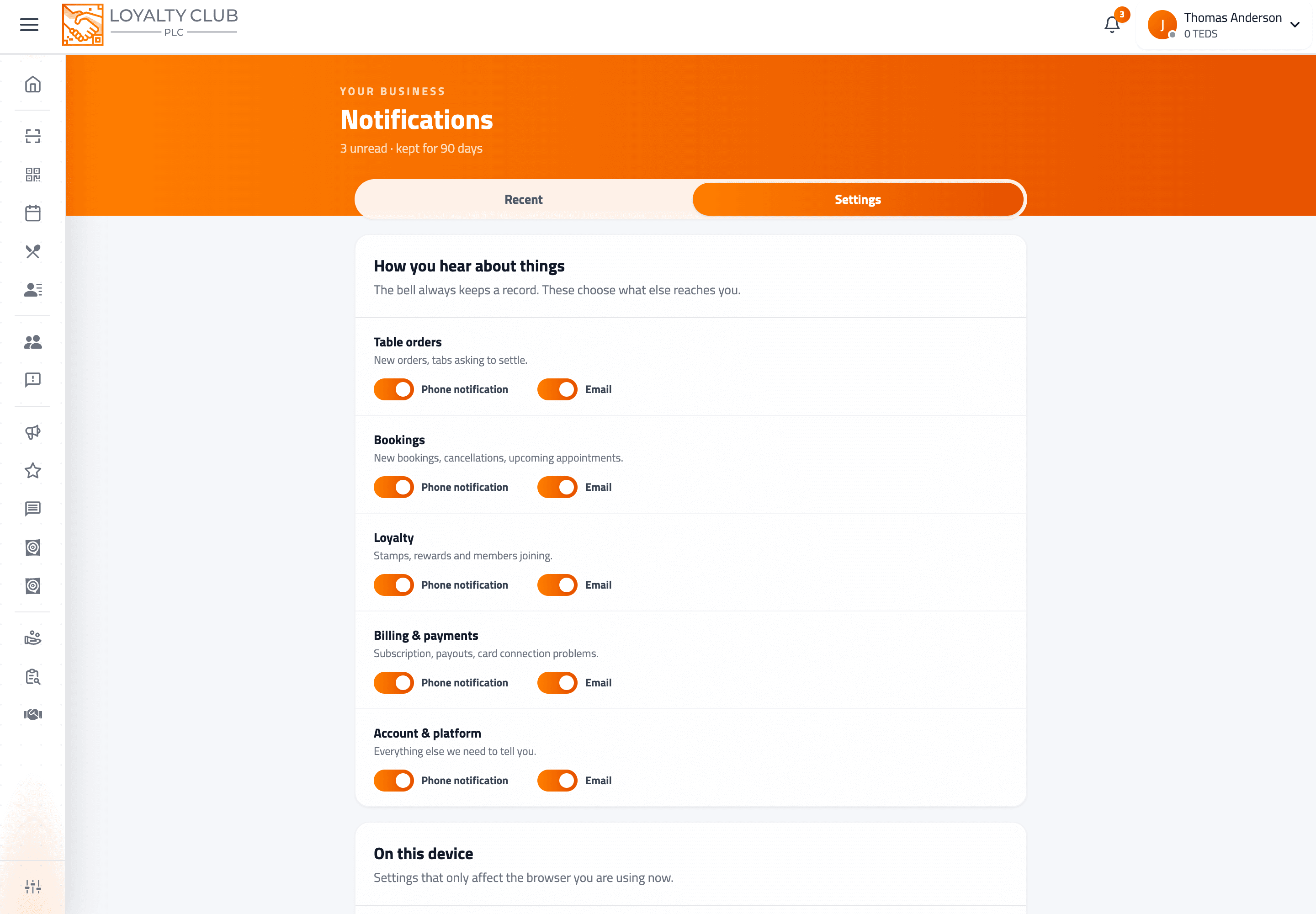
Categories
Five, each with its own Phone notification and Email switches:
| Category | What lands in it |
|---|---|
| Table orders | New orders, tabs asking to settle |
| Bookings | New bookings, cancellations, upcoming appointments |
| Loyalty | Stamps, rewards and members joining |
| Billing & payments | Subscription, payouts, card connection problems |
| Account & platform | Everything else we need to tell you |
These switches decide what else reaches you. Turning push and email off for a category does not hide it — it still appears in the bell and in your 90-day history.
These Email switches are about emails to you. The emails your club sends to your members — the welcome, reward ready and the rest — are set up separately in Message Centre → Emails. See Club emails: what they are and how they send.
Why categories matter
The first partner woken at two in the morning by an order alert turns notifications off at the operating-system level, and that channel is then lost permanently — including the billing warnings they would actually have wanted.
Setting categories separately avoids that. Turn table orders down out of hours if you need to; leave billing on.
Push on for Table orders and Billing & payments. Email on for Billing & payments so there is a written record. Everything else in the bell only.
The new-order chime
A separate switch, under On this device.
It plays a short sound when an order arrives, so a busy kitchen hears it without anyone watching the screen. Because it is stored on the browser rather than your account, it is set per device — turn it on for the screen in the kitchen and leave it off on the laptop in the office.
Getting push onto phones
- 01Install the partner app
Push requires the Loyalty Club partner app on iPhone or Android — see Getting the mobile app.
- 02Allow notifications when asked
The phone's own permission prompt appears on first sign-in. If it was declined, it has to be re-enabled in the phone's system settings for the app — we cannot ask again from inside it.
- 03Set the categories
Then choose which categories are allowed to reach that phone.
Staff devices
Staff logins register for push in their own right. This matters more than it sounds: the phone that should buzz for a new table order is usually the one in a server's apron, not the owner's.
Add team members as normal — see Adding a staff member — and their devices are covered once they sign in on the app and allow notifications.
A phone only receives notifications for the account currently signed in on it. If a staff member signs in on a device someone else was using, alerts follow the new sign-in.
In one sentence
/notifications → settings tab → set phone and email per category, and turn the chime on for whichever device sits in the kitchen.