

At the start of each month, we email you what your loyalty club did for your business the month before. It is short, it is your own figures, and it arrives without you having to log in.
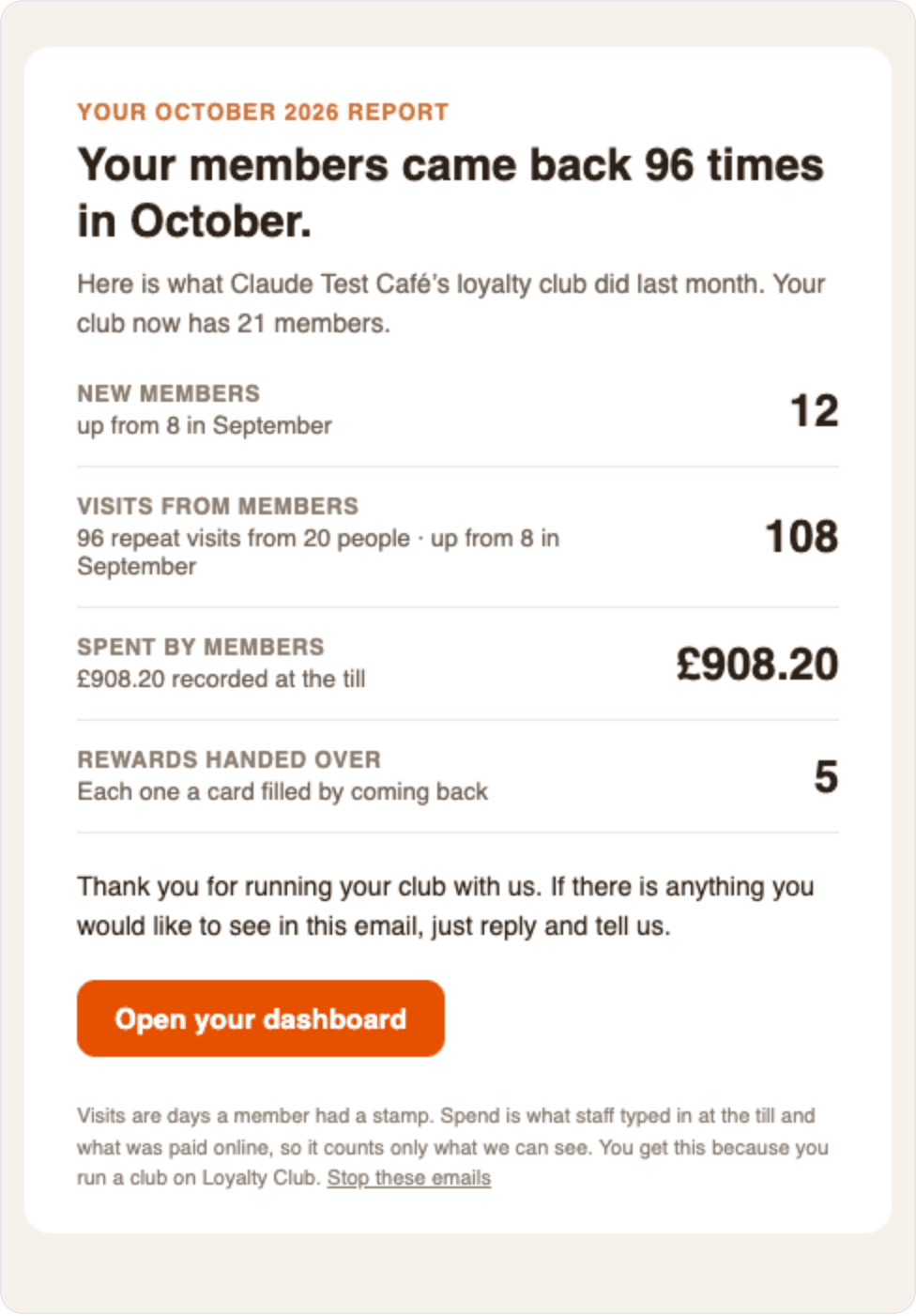
What it shows
Each line is compared with the month before where that makes sense ("up from 8 in September"):
| Line | What it counts |
|---|---|
| New members | People who joined your club that month |
| Visits from members | Days a member had a stamp, and how many of those were repeat visits from people who had been before |
| Spent by members | What staff typed in at the till, plus what was paid in online orders |
| Rewards handed over | Cards filled by coming back and redeemed |
| Bookings that turned up | If you take bookings |
| Reviews | Visits rated, and customers who went on to your Google review page |
A line with nothing in it is left out. If the month was quiet, the report says so plainly and suggests sending your members a message, which is the quickest way to bring them back.
Spend is only what is recorded through Loyalty Club, so a sale where nobody entered an amount at the till is not in it. The report is a picture of your club, not of your whole takings.
When it arrives
In the first week of each month, about the month just gone, to the email address on the owner's account. You get it once your club has at least one member and while your subscription is active. Staff logins do not get it.
Switch it off, or read it now
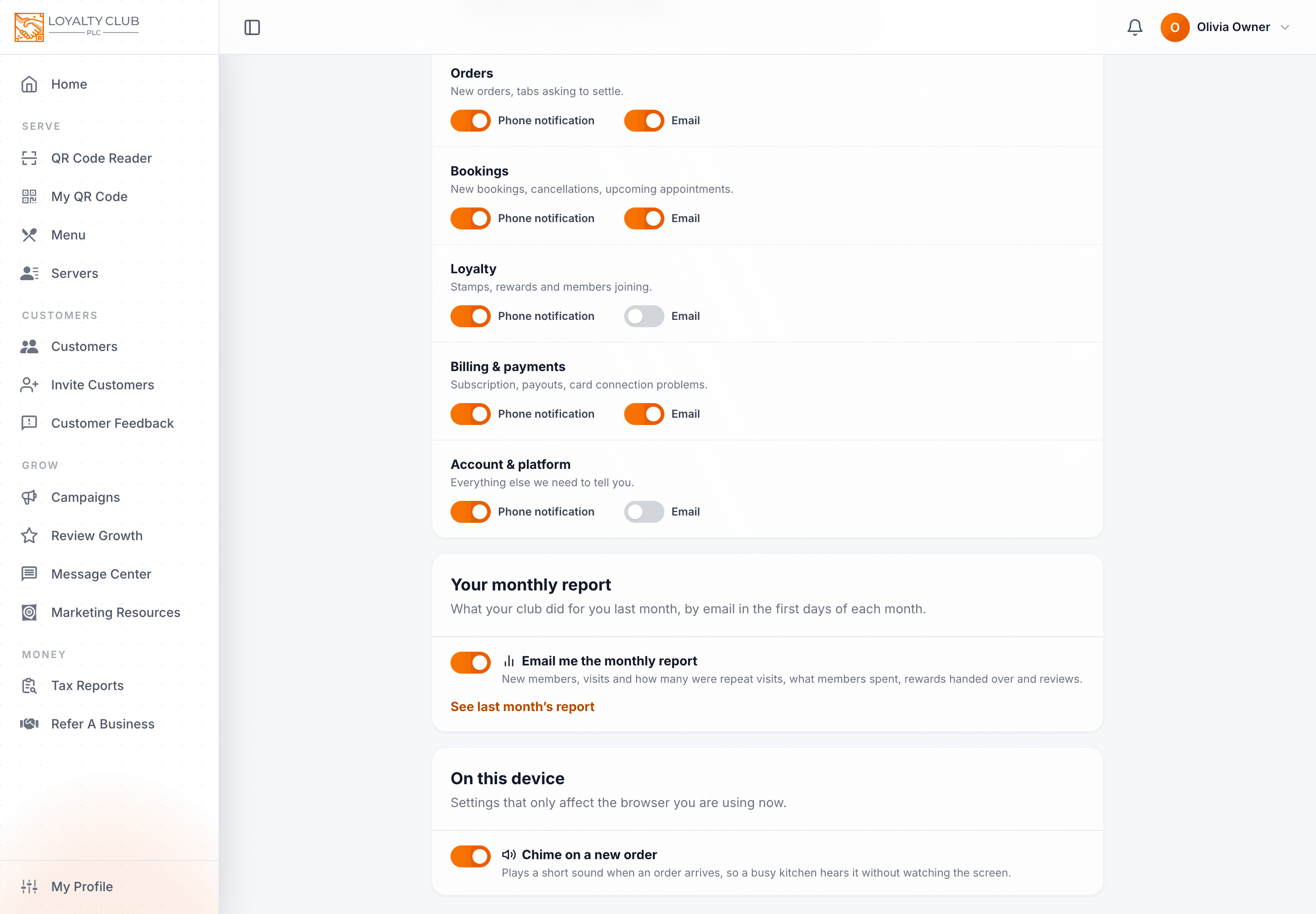
- 01Open Notifications
Tap the bell, then Settings (or go to
/notifications). - 02Find Your monthly report
Email me the monthly report turns the email on or off. It is on to start with.
- 03See last month's report
Opens last month's report exactly as the email draws it, so you can read it any time, even with the email switched off.
The Stop these emails link at the bottom of every report takes you to the same switch.
In one sentence
Every month we email owners what their club did last month (members, visits, repeat visits, spend, rewards, bookings and reviews); switch it off or read it now in Notifications → Settings → Your monthly report.