

The Server detail page gives you a staff-level view of loyalty activity. Use it to understand who is scanning, which campaigns they are helping move, when they are busiest, and whether any activity needs a closer look.
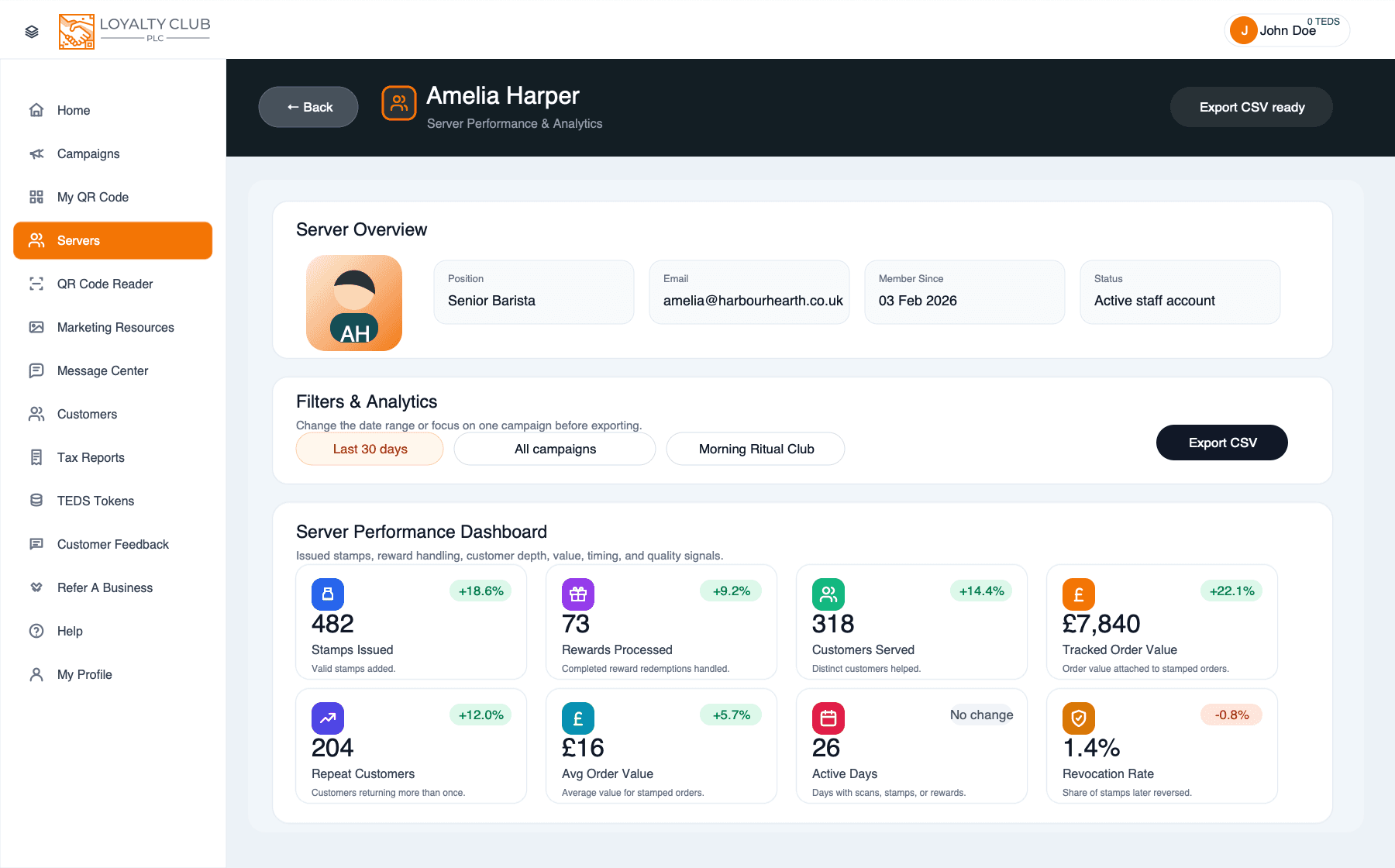
Open a staff analytics page
- 01Open Servers
Use the portal sidebar and go to Servers.
- 02Choose a staff member
Find the staff member you want to review.
- 03Click View
This opens the Server detail page for that staff account.
- 04Set the reporting scope
Choose a date range and, if needed, filter the analytics to one campaign.
- 05Review or export
Use Export CSV for a spreadsheet-friendly report, or Print Snapshot for a saved visual summary.
What the top cards show
The main dashboard cards compare the selected period with the previous period where comparison data is available:
- Stamps Issued — valid stamps added by this staff member.
- Rewards Processed — completed reward redemptions handled by this staff member.
- Customers Served — distinct customers touched through stamps or rewards.
- Tracked Order Value — order value attached to unique stamped orders.
- Repeat Customers — customers with more than one staff-handled visit.
- Average Order Value — average value of stamped orders.
- Active Days — days where the staff member issued stamps or processed rewards.
- Revocation Rate — the share of issued stamps later revoked.
Trends, campaigns, and timing
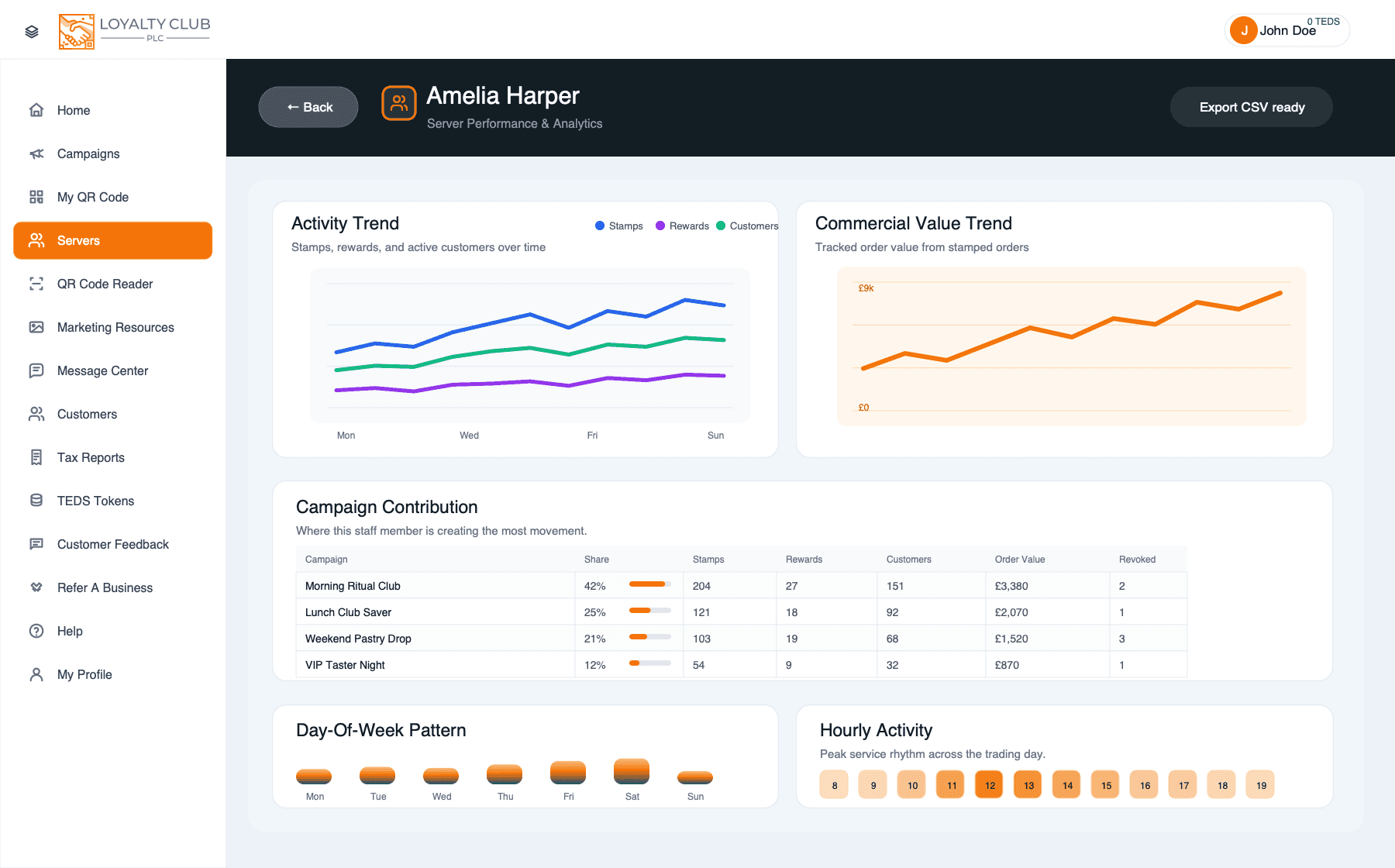
Use the charts to answer practical questions:
- Which days or hours are busiest for this staff member?
- Is the staff member driving stamps, rewards, or both?
- Which campaigns are getting the most staff-led activity?
- Is tracked order value rising, flat, or dropping over the selected period?
- Are any campaigns showing unusually high revoked activity?
Segments and coaching signals
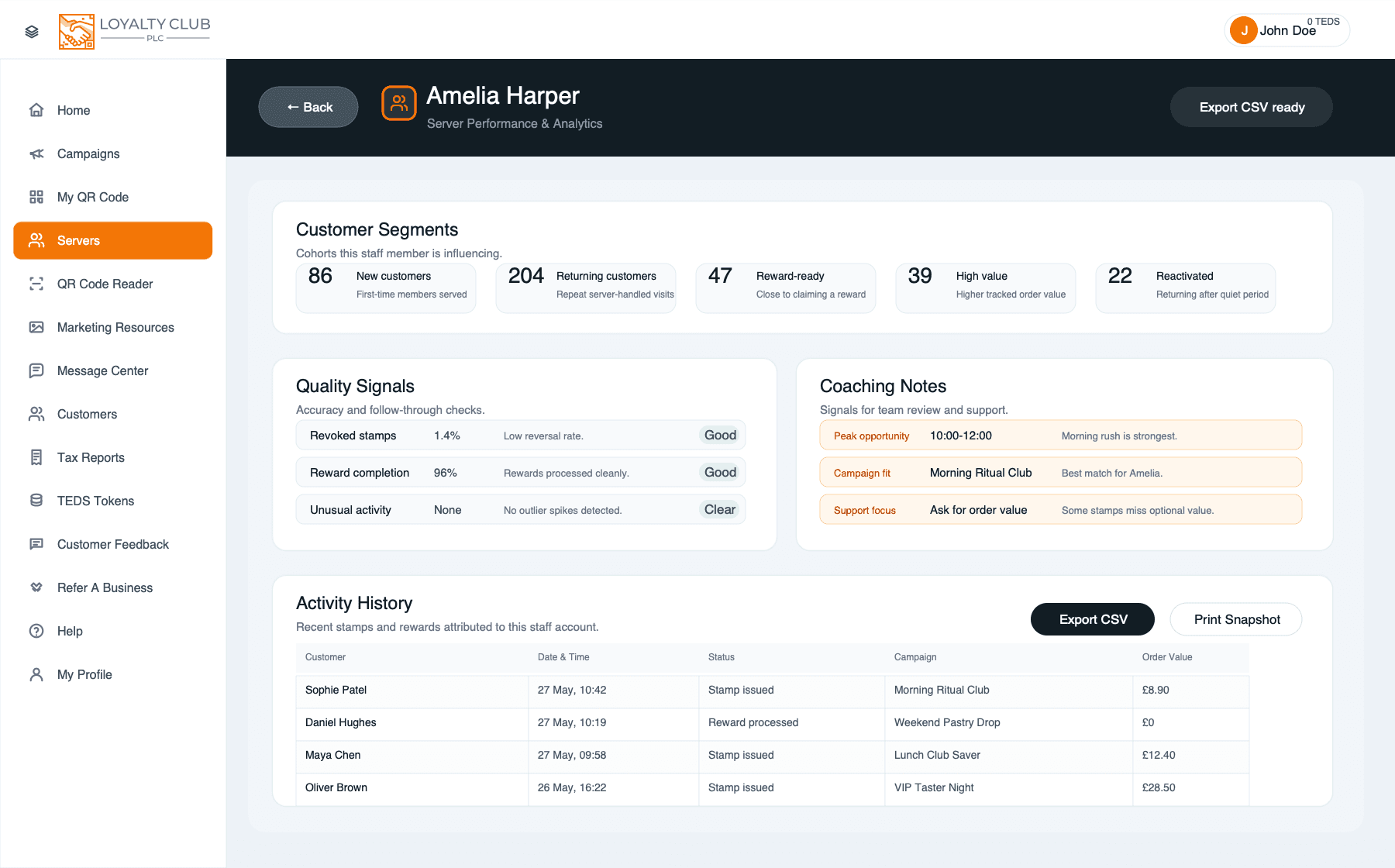
The lower sections are designed for day-to-day team management:
- Customer Segments shows the types of customers this staff member is influencing, such as new customers, returning customers, reward-ready customers, and reactivated customers.
- Quality Signals highlights checks like revoked stamps, reward completion, and unusual activity.
- Coaching Notes turns patterns into prompts for support, training, or recognition.
- Activity History lists recent attributed stamps and rewards with customer, date, status, campaign, and order value context.
What to know
- Analytics are based on activity attributed to the selected staff account, such as stamps issued and rewards processed.
- A campaign filter narrows the whole analytics view to that campaign.
- Export CSV is best for deeper analysis outside the portal.
- Treat the page as an operational coaching and performance tool. For sensitive employment or payroll decisions, check the underlying stamp and order records first.
In one sentence
Servers → View → choose a date range or campaign → review performance, charts, coaching signals, and activity history → export if needed.