

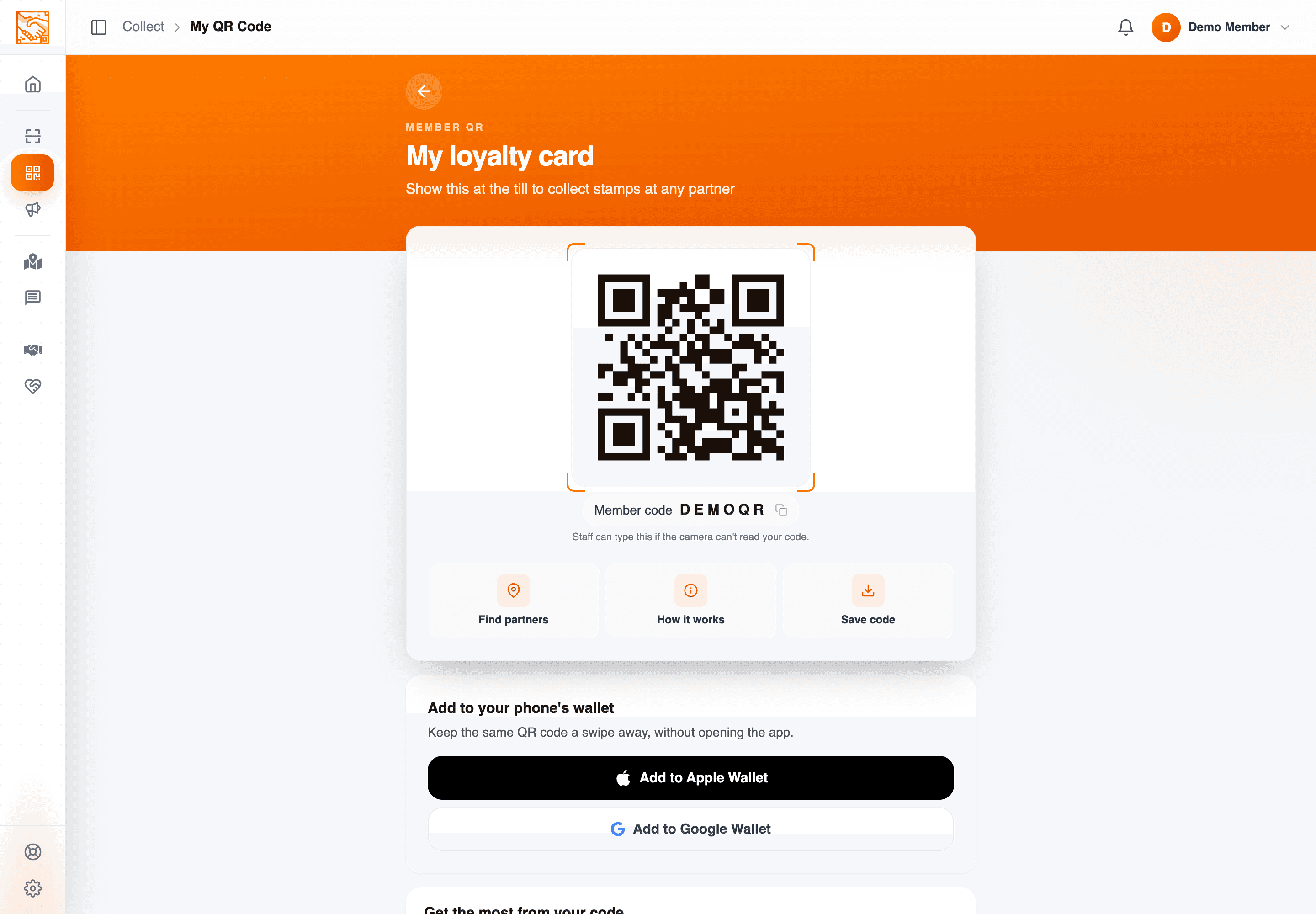
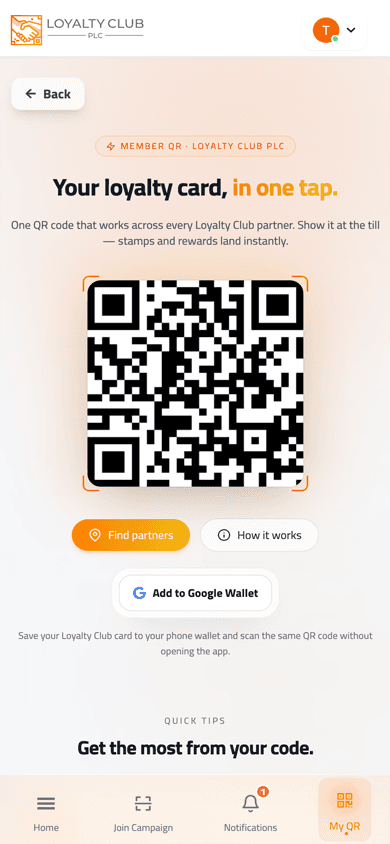
Your My QR screen displays the personal QR code used at every partner.
Showing it
- 01Open the app and tap My QR
The QR fills the centre of the screen.
- 02Turn your screen brightness up
The page itself reminds you: "Turn your screen brightness up and hold steady while staff scan — most readers lock on in under a second." Brightness is a phone-OS setting; there’s no in-app brightness boost button currently.
- 03Hold the phone steady
Staff scan with their device. Most scans take under a second.
Buttons on the My QR screen
- Download — saves the QR as
my-loyalty-qr-code.png. - Share the network — routes to Refer a friend (this isn’t "share my personal QR" — it’s for sharing the platform with friends so they sign up).
- Add to Apple Wallet / Add to Google Wallet — saves the loyalty card to your phone wallet so you can scan the same QR without opening the app. See Adding your card to Apple Wallet or Google Wallet.
One QR everywhere
The QR is account-bound. The same code works at every partner; you don’t need a different code per business. Once you’ve shown it somewhere, you’re identified to the network — every future visit just scans the same code.
Your QR in an email
An email from a business you’ve joined can carry your QR code too. Staff can scan it straight from the email, just like the app — handy if you haven’t got the app on that phone. See Emails from the businesses you join.
Troubleshooting
If a stamp doesn’t appear, see My stamp didn’t appear.
In one sentence
Tap My QR → turn brightness up via your phone’s OS → hold steady for staff to scan.