

Earning your first stamp takes about 30 seconds at the till.
Before you arrive
- 01Open the app
Sign in if you aren’t already.
- 02Find a partner near you
Use the partners map to find a participating business. Tap a marker to see the business name and address.
At the till
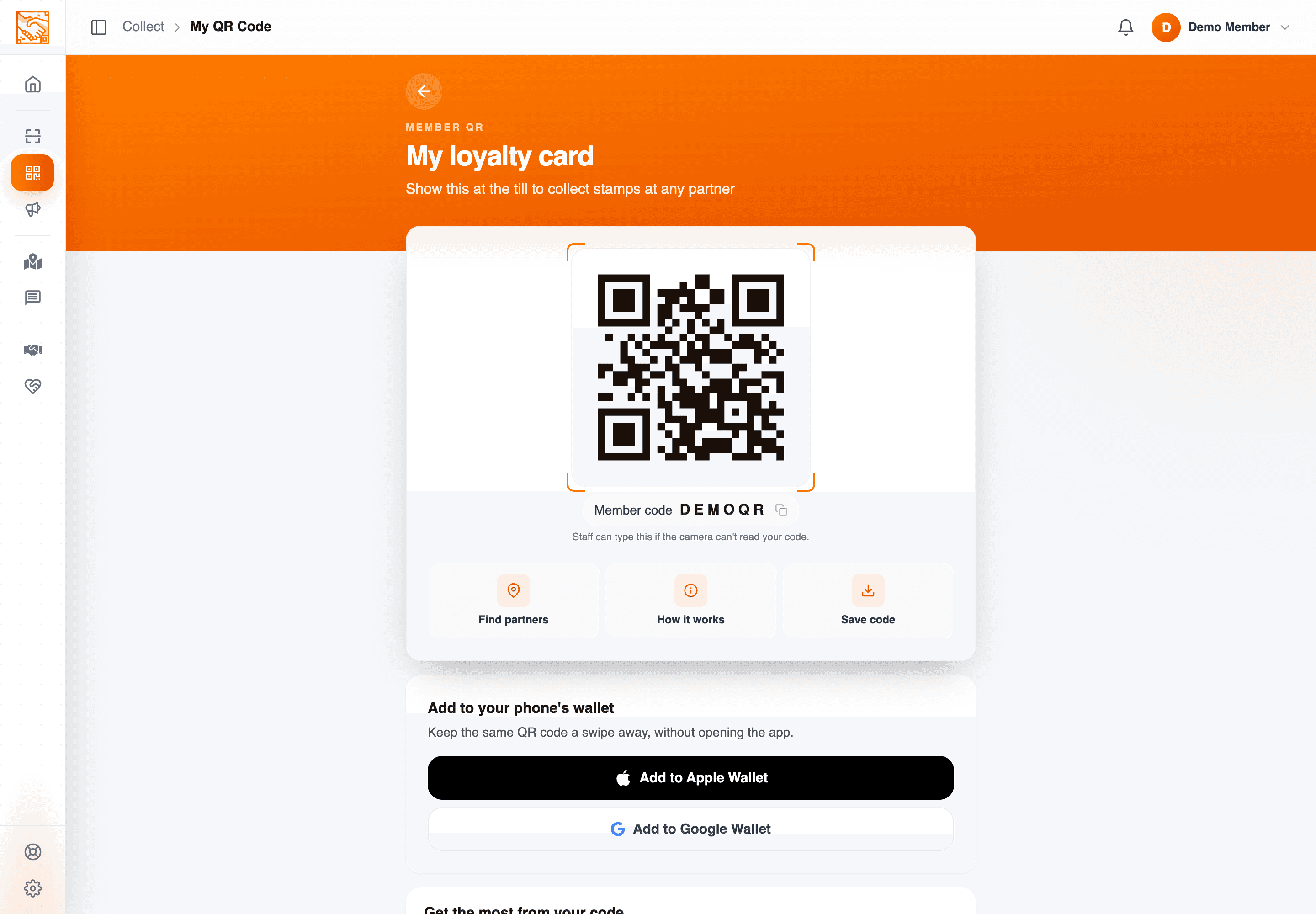
- 01Open My QR
Tap the My QR tile. The QR fills the screen.
- 02Turn your screen brightness up
The page itself reminds you. There’s no in-app brightness boost; do it from your phone.
- 03Show the phone to staff
The staff app scans your QR. If this is your first visit, the partner’s flow lets them apply a stamp and enrol you in one go (the partner side has a "Join customer to another campaign?" affordance).
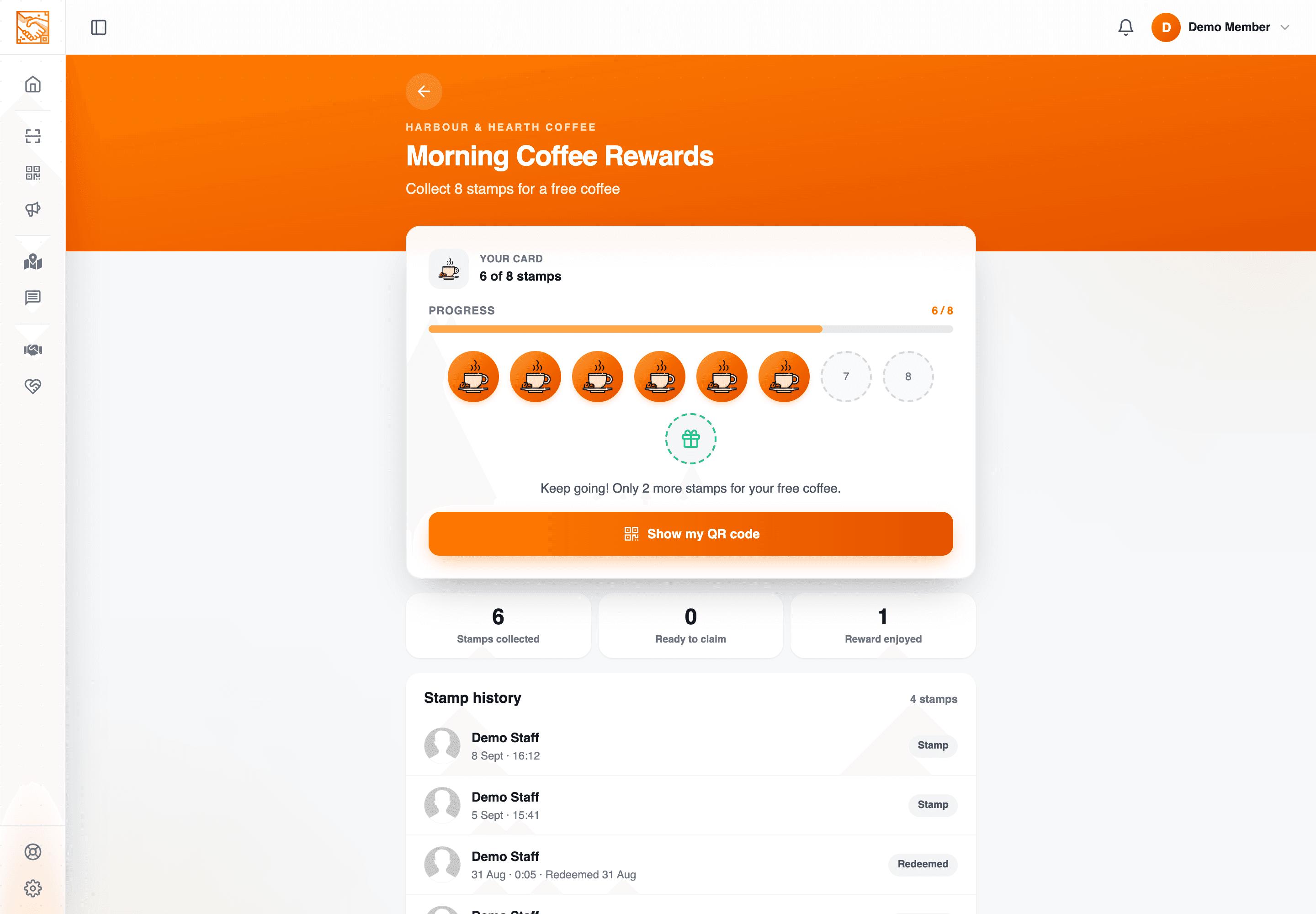
- 04Watch for the stamp
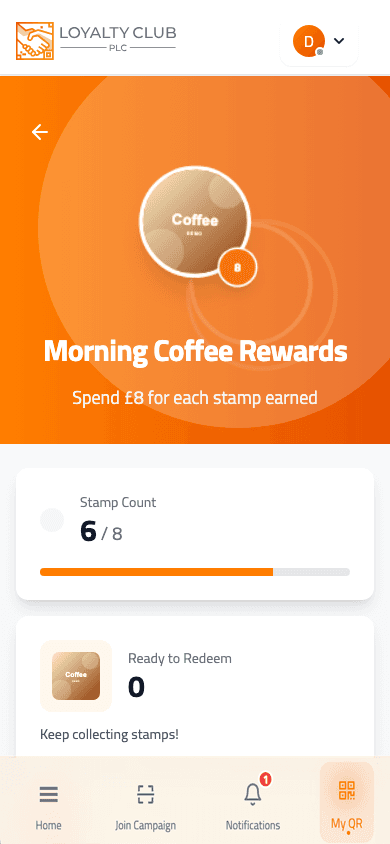
The stamp lands on your card within seconds. Pull-to-refresh My Campaigns if it doesn’t appear immediately.
Some partners use scan-to-join
A small minority of partners may display a campaign QR for you to scan with your app first. The member portal includes scanner pages for iOS, Android and Desktop (Capacitor ML Kit on mobile, react-qr-reader on desktop). If asked to scan their code first, open the scanner from the home screen. Joining in the app also asks whether you want offers from that business — see Joining a new campaign.
Afterwards: a welcome email
If the business has club emails switched on, a welcome email from them arrives a few minutes after you join, with your card already started. See Emails from the businesses you join.
Troubleshooting
If a stamp doesn’t appear, see My stamp didn’t appear.
In one sentence
Find a partner → walk in → show My QR. Staff scan it; the stamp lands.