

It is switched on per account while we prove it with live venues. Ask us on the contact form if you would like it enabled.
Menu Studio is at /menu. If you already have a printed menu, do not type it — photograph it instead and come back here to tidy up.
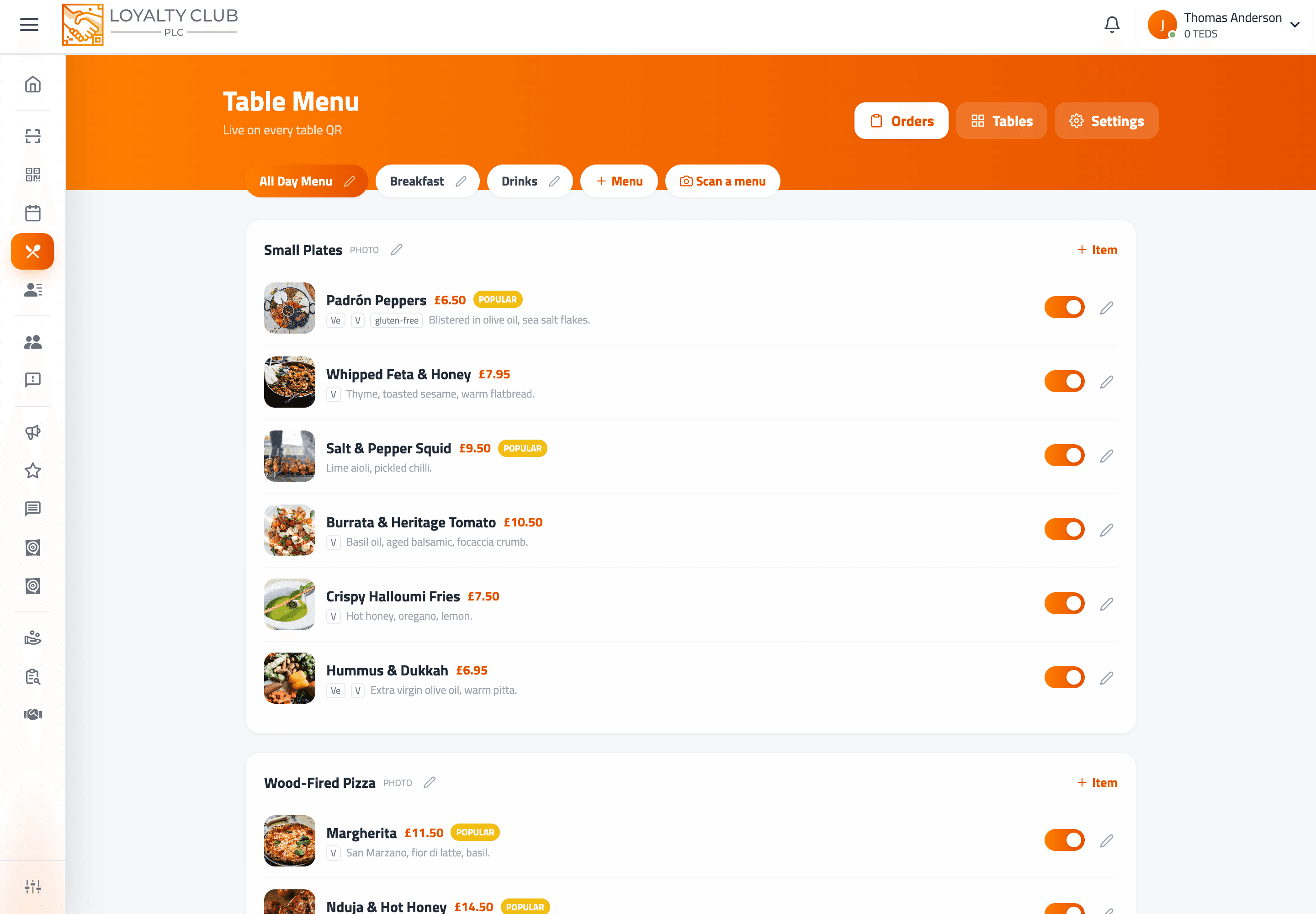
The three levels
- 01Menu
"Breakfast", "Dinner", "Drinks". A venue can have several, and they can overlap — a drinks menu running all day alongside lunch is normal.
- 02Section
"Starters", "Mains", "Wines". Sections belong to one menu and control how their dishes are laid out.
- 03Item
The dish itself: photos, description, price, allergens, options, loyalty link.
Menus and schedules
A menu with no schedule is always live. Give it one and it appears only on the days and between the times you set, in your own local time.
That is how breakfast stops being orderable at four in the afternoon without anyone remembering to switch it off. Overlaps are allowed on purpose.
Sections and layout
Each section is either:
- Photo — dish cards with the hero image. Right for mains, burgers, brunch, desserts.
- List — compact rows, no images. Right for wines, sides, sauces and extras.
When you add a section you are offered a list of ready-made names — Starters, Mains, Grill, Sides, Hot Drinks, Wines and so on — each of which fills in the layout that suits it. Everything stays editable, and ideas already used in the current menu are hidden.
Dishes
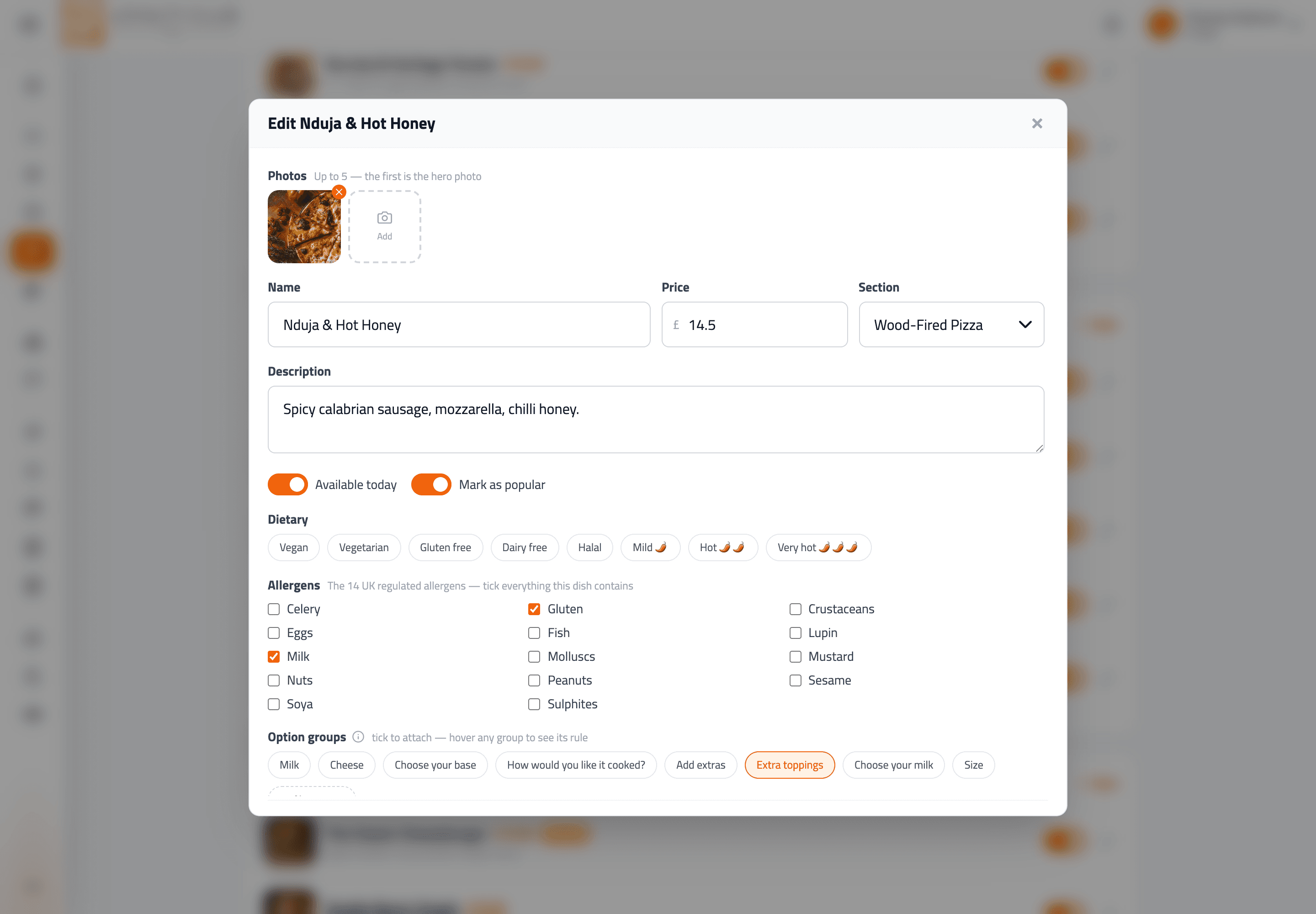
| Field | Notes |
|---|---|
| Photos | Up to five. The first is the hero image used on the card. |
| Name | Up to 80 characters. |
| Description | One or two lines is plenty — the card truncates. |
| Price | In pounds. Re-checked on the server when an order is placed, so a stale menu on someone's phone can never underpay you. |
| Allergens | The 14 UK regulated allergens as a checklist: celery, gluten, crustaceans, eggs, fish, lupin, milk, molluscs, mustard, nuts, peanuts, sesame, soya, sulphites. |
| Dietary tags | Vegan, Vegetarian, Gluten free, Dairy free, Halal, and three spice levels. Shown as chips on the dish. |
| Popular | Flags the dish on the menu. |
| Option groups | Reusable choice sets — see below. |
| Loyalty | Links the dish to a campaign and puts an ember badge on it. See Stamps from table orders. |
Tick everything a dish contains, and review it whenever a recipe or supplier changes. UK allergen information is regulated. The allergen notice in menu settings covers the rest — cross contamination, kitchen conditions, and telling people to ask your team.
The sold-out toggle
Every dish row in the studio has an availability toggle. Turning it off greys the dish out on every menu currently open on a diner's phone, on their next refresh. Turning it back on is the same tap.
This is the control that decides whether a menu survives real service. Use it the moment something runs out.
Option groups
Option groups are the build-your-own engine, and they are reusable across dishes — create "Extra toppings" once and attach it to every pizza.
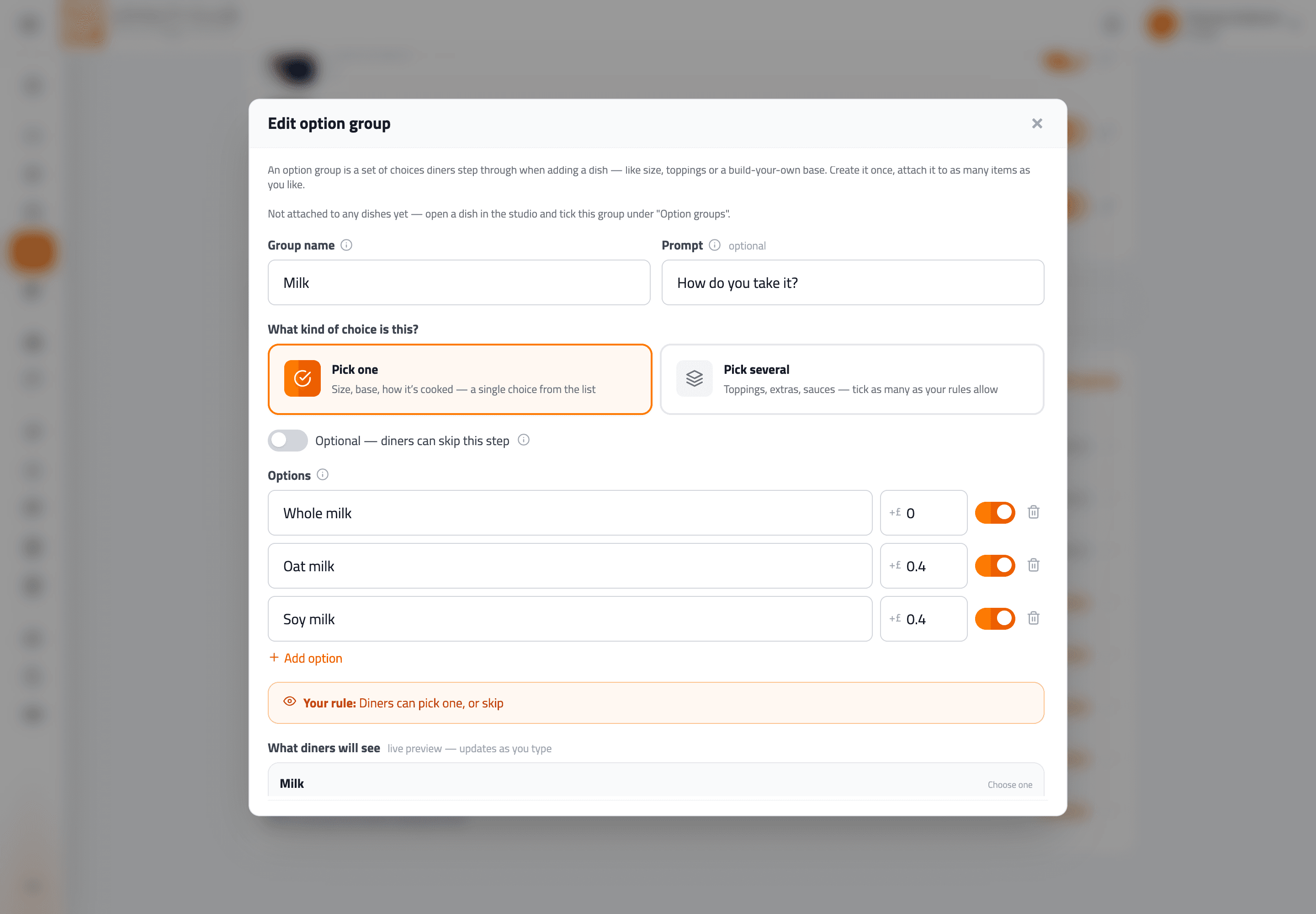
You can start from a template — Size, Extra toppings, Choose your base and similar — then change anything. Each group has:
- A group name — the heading diners see above the choices. Keep it short: "Size", "Extra toppings", "Choose your base".
- A prompt (optional) — a friendly line under the heading, like "Every salad starts with one".
- Pick one or Pick several — a single choice from the list, or tick as many as your rules allow.
- Optional — whether diners can skip the step.
- Minimum and maximum for Pick several.
0means no minimum and no limit respectively. - An included quantity — the first N choices are free and extras are charged. This is how "three toppings included, 50p each after" works.
- Options, each with a
+£price difference and its own availability toggle, so you can take one choice off without deleting it.
Composing a few groups covers build-a-salad, steak temperature, pizza toppings and meal-deal sides without a separate dish for each combination.
The editor states your rule back in plain English — "Diners can pick one, or skip" — and shows a live preview of exactly what the diner will see, updating as you type. If the sentence does not describe what you meant, the rule is wrong.
Whatever the diner's phone displays, the order total is recalculated on the server against your live menu when the order is placed. Invalid combinations — too many choices, a required group skipped — are rejected outright.
In one sentence
/menu → create a menu (optionally scheduled) → add sections with a photo or list layout → add dishes with photos, allergens, dietary tags and option groups → use the availability toggle during service.