

Marketing Studio is the design workspace inside Marketing Resources. Use it to create in-store posters, flyers, table cards and social images that send members to your Loyalty Club QR code.
What you can make
Marketing Studio supports:
- A4 Flyer for windows, counters and notice boards.
- A5 Handout for bag inserts, tables and staff handouts.
- Social Square for Instagram, Facebook and email graphics.
- Story for vertical social sharing.
- Landscape for web banners, screens and wide social posts.
Each format reflows the design so the headline, QR code, reward image and footer stay usable for that size.
Start from a template
Open Marketing Resources from the partner sidebar, then choose a starting point from Templates:
- Window Poster — a scan-first layout for in-store joining.
- Reward Feature — a stronger hero layout for a named reward or campaign.
- Clean Local — simpler everyday layout.
- Social Burst — high-contrast share graphic.
You can then switch format, edit the text, move elements, resize elements from the corner handles and export once the checks are green.
Build from an existing campaign
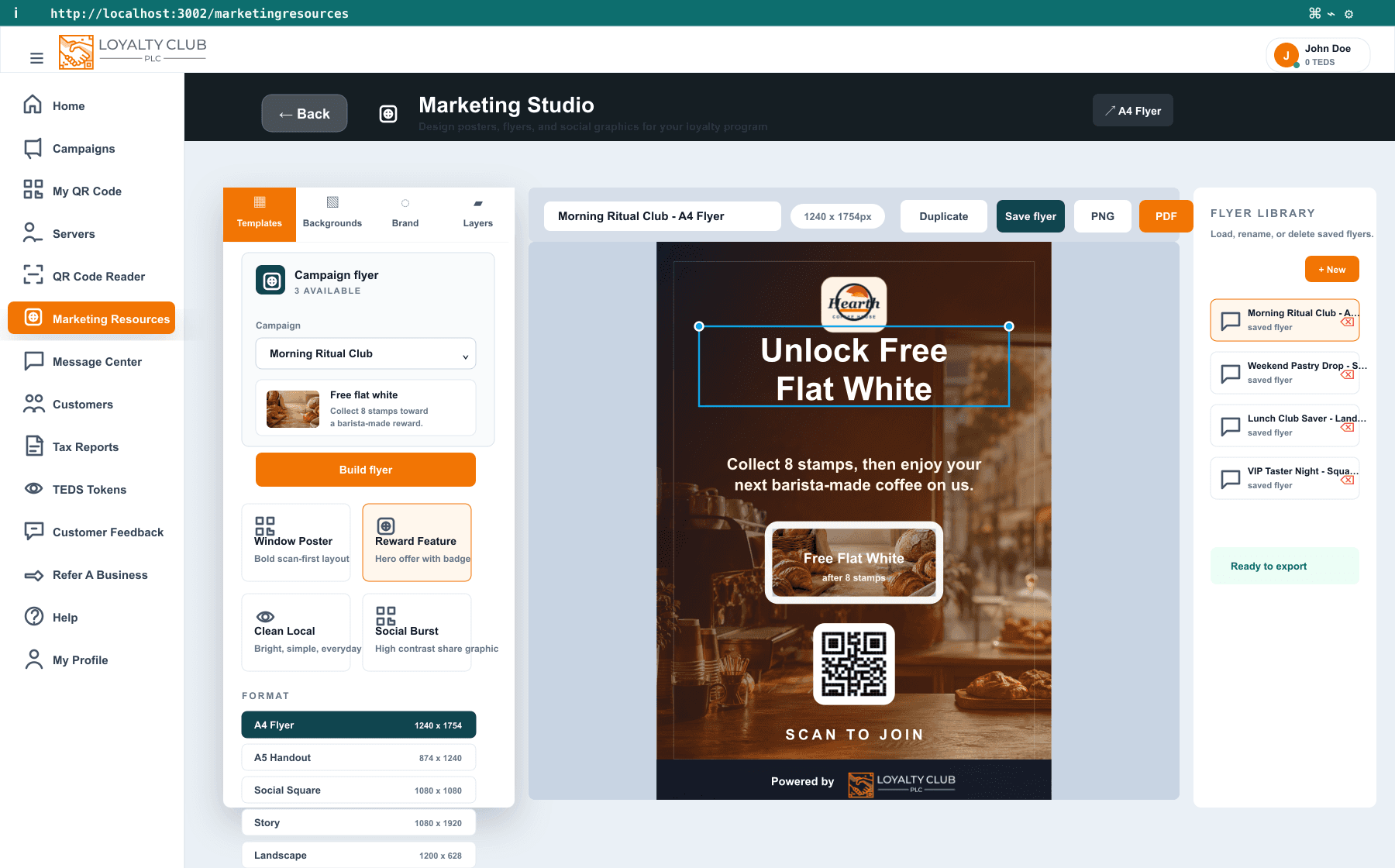
If you already have campaigns, use the Campaign flyer panel at the top of Templates.
- 01Choose a campaign
Select the campaign you want to promote. Marketing Studio reads the campaign name, reward, stamp goal and available reward image.
- 02Review the campaign card
Check the reward copy, goal and value summary before building the flyer.
- 03Build flyer
Click Build flyer. The studio creates a flyer with campaign-specific headline copy, supporting text, reward image, QR code and powered-by footer.
- 04Adjust the layout
Move or resize the headline, reward image, QR code and other editable elements until the poster feels right for the selected format.
Campaign flyers work best when the reward is clear: "Free Flat White", "£5 Lunch Credit", "VIP Taster Night" or "Birthday Treat". Keep the headline short and let the supporting copy explain the stamp goal.
Choose a background
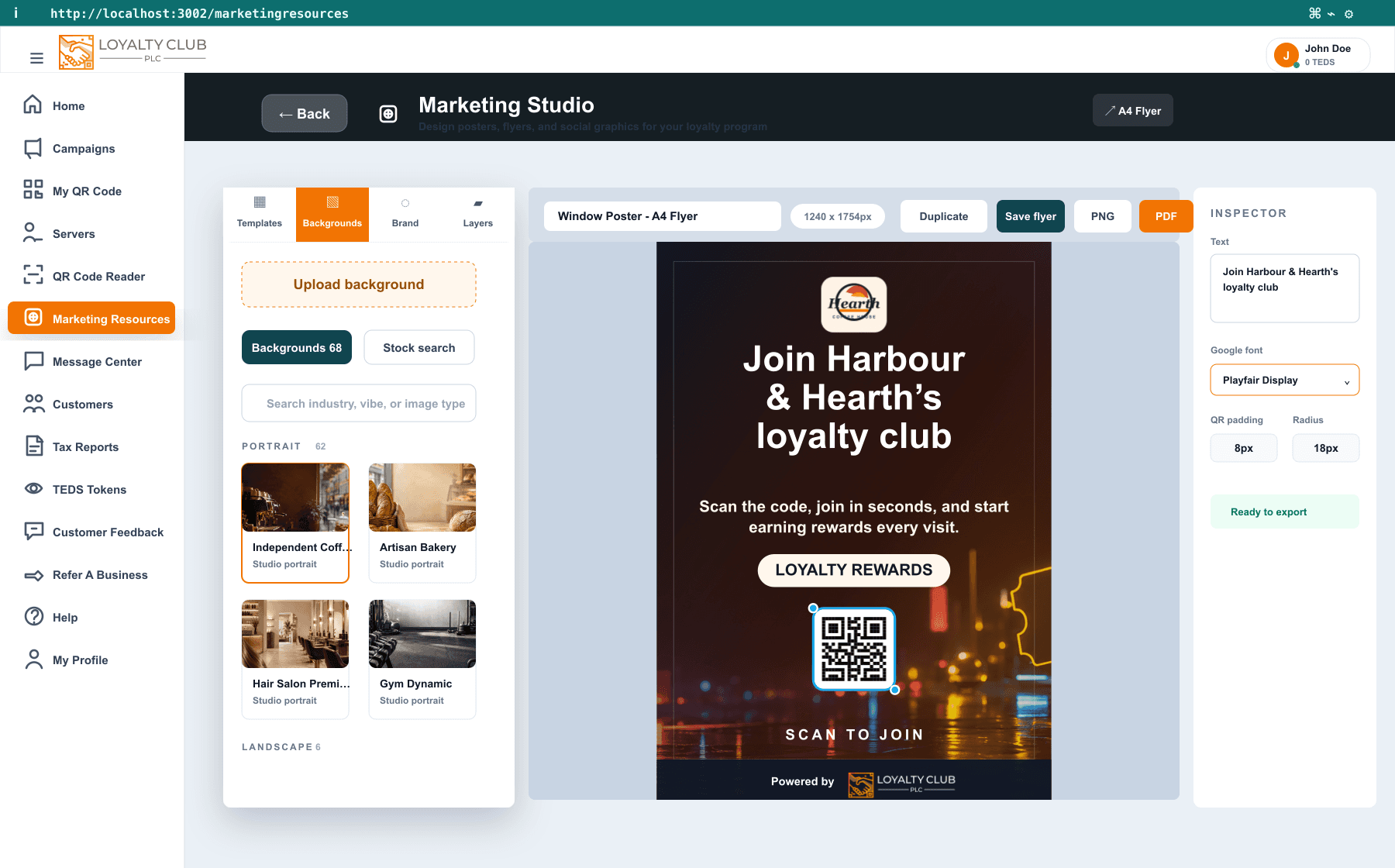
The Backgrounds tab includes the studio background library, stock-photo discovery and your own uploads.
The built-in library now includes a curated set of trade-specific backgrounds designed for loyalty flyers — coffee shops, bakeries, restaurants, pubs and bars, hair and beauty salons, barbers, spa and wellness, gyms and fitness, yoga studios, florists, jewellers, fashion boutiques, bookshops, family and toy shops — plus universal reward, seasonal and premium backdrops for any business. Each one leaves clean space for your headline and QR code.
Use the background search for things like:
coffee,bakery,restaurant,barsalon,spa,fitness,wellnessboutique,jewellery,bookshop,floristminimal,premium,family,night,celebration
You can also upload your own image. Good uploads are high-resolution, uncluttered, and leave darker or simpler space where the QR code and headline will sit.
Explore stock photos
The Stock area helps you search for images from stock-photo libraries, including industry-specific searches.
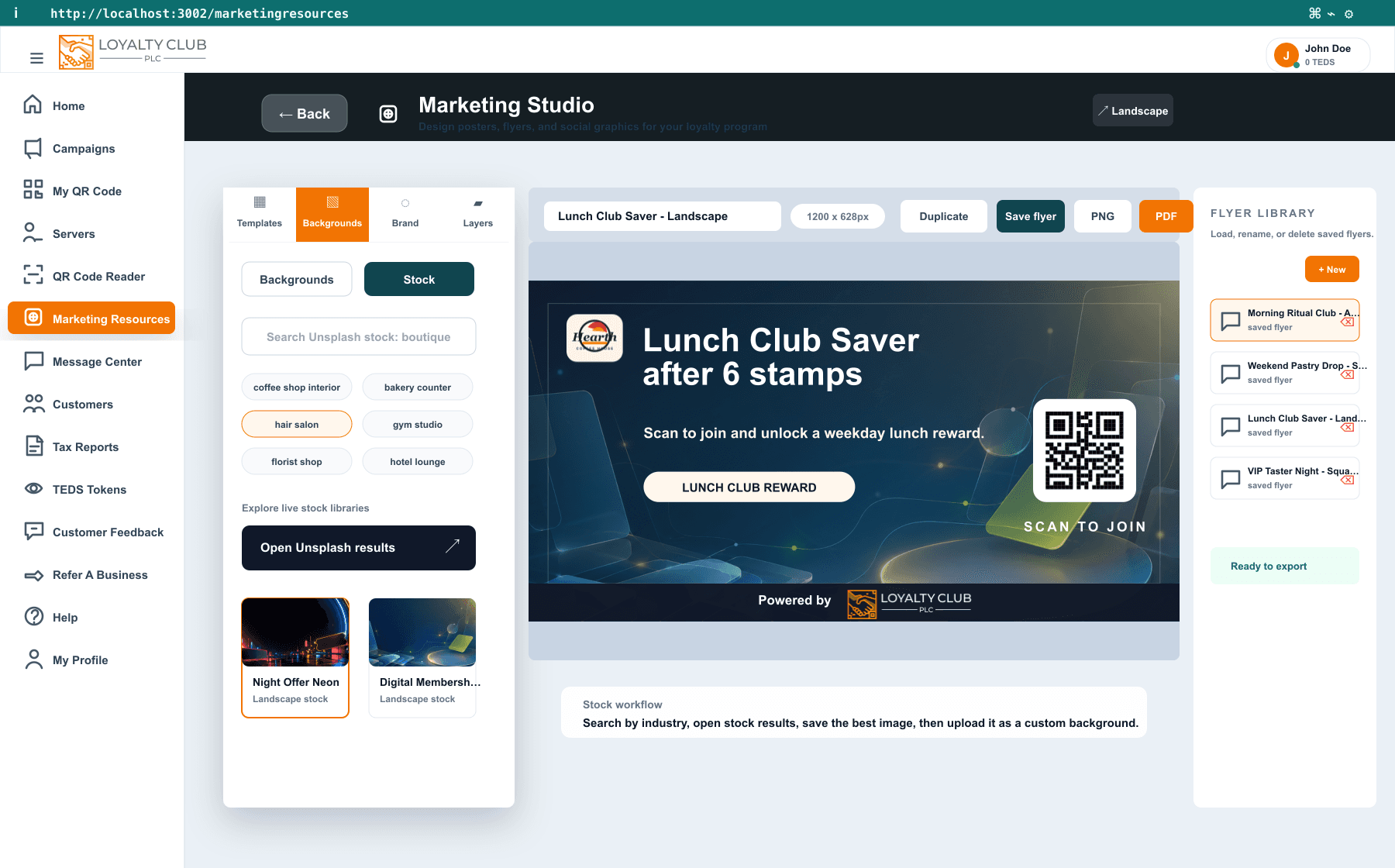
Stock-photo workflow:
- Search for the business type or mood.
- Open the stock results.
- Choose an image that leaves clear space for text and QR.
- Download or save the image according to the stock provider's licence.
- Return to Marketing Studio and upload it as a custom background.
Edit brand and layout
Click any editable element on the canvas to select it.
Common edits:
- Text — change headline, supporting copy or badge copy.
- Google font — type a Google Font family name and apply it to the selected text element.
- Position and size — drag the element to move it, or drag a corner handle to resize it.
- QR code — adjust padding, card colour and corner radius so the QR remains clear.
- Logo — choose how the logo fits its frame and adjust the frame style.
- Brand palettes — apply a colour set across the headline, body text, footer and badge.
The footer is protected so exported flyers keep the required Powered by Loyalty Club branding.
Save, reopen and export
Use Save flyer when you want to keep the current flyer for later. The flyer is stored in your Flyer library (up to 24 saved designs), where you can reopen previous designs, create a new flyer, duplicate a design or delete old drafts.
Before export, check the Export checks panel. It will warn you if the QR code is missing, too small, outside the safe area or still loading.
Export options:
- PNG for social posts, email attachments and quick sharing.
- PDF for print-ready flyers and posters.
Good flyer checklist
- The reward or reason to scan is obvious within 3 seconds.
- The QR code is large enough and has clear white space around it.
- The headline does not overlap the reward image or logo.
- The background supports the text instead of competing with it.
- The footer is visible but not louder than the offer.
- You export the right format for where the design will be used.
In one sentence
Marketing Resources → Marketing Studio lets you build normal or campaign-based flyers, choose backgrounds, customise the brand, save designs and export PNG/PDF assets with a scannable QR code.